UW-Madison AIM
Information Architecture and Navigational Website Redesign
- Website Design
- UX Research
- UX Design
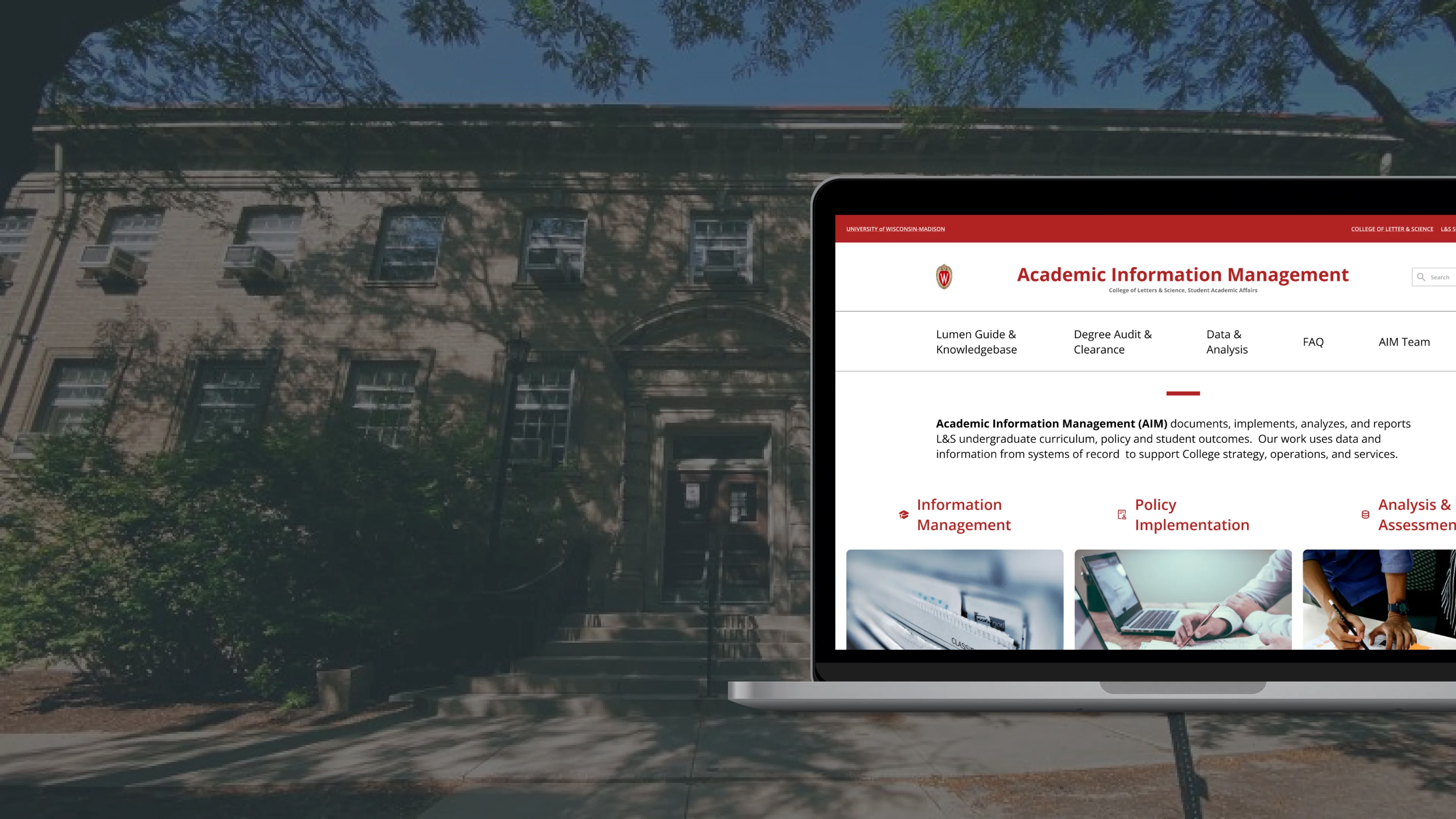
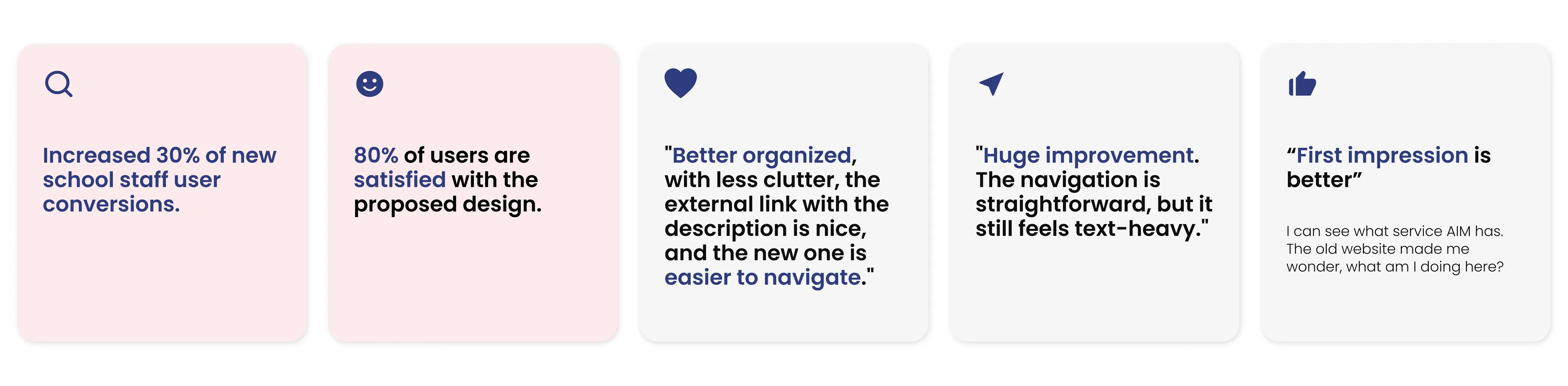
As the product designer, I proposed a redesign of the AIM website with a focus on creating an intuitive and functional information architecture. Through rigorous usability testing, I was proud to receive a 100% satisfaction rate for the redesign.
- My role
- Product Designer, UX Researcher
- Team
- 1 Product Manager, 1 Product Designer, 1 Engineer
- Duration
- 4 months (July - December 2022)
Background
AIM (Academic Information Management), formed in 2012, helps UW-Madison administration, academic planning, advising, and teaching to ensure L&S department undergraduate curriculum and policy information is accurate; and make sure programs and operational systems are rational and efficient.
Problem
Difficulties in finding information on the website can frustrate users and discourage revisiting.
User & Goal
Users are University of Wisconsin - Madison faculties, including student advisors, analysts, and assistant deans. The goal is to find which services can support them and find the right person in AIM to contact if needed.
Solution: Final Design
1. Information Hierarchy
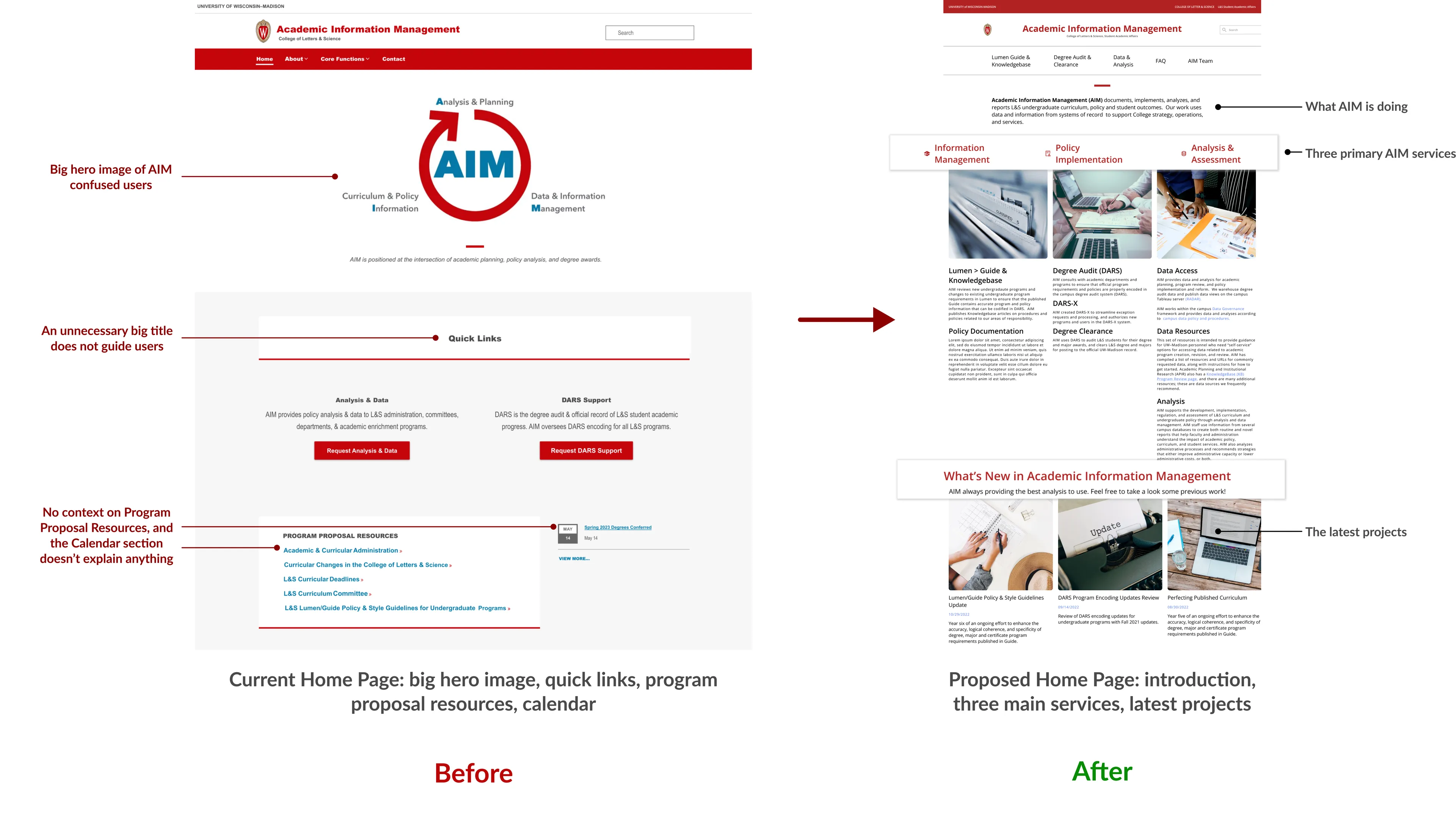
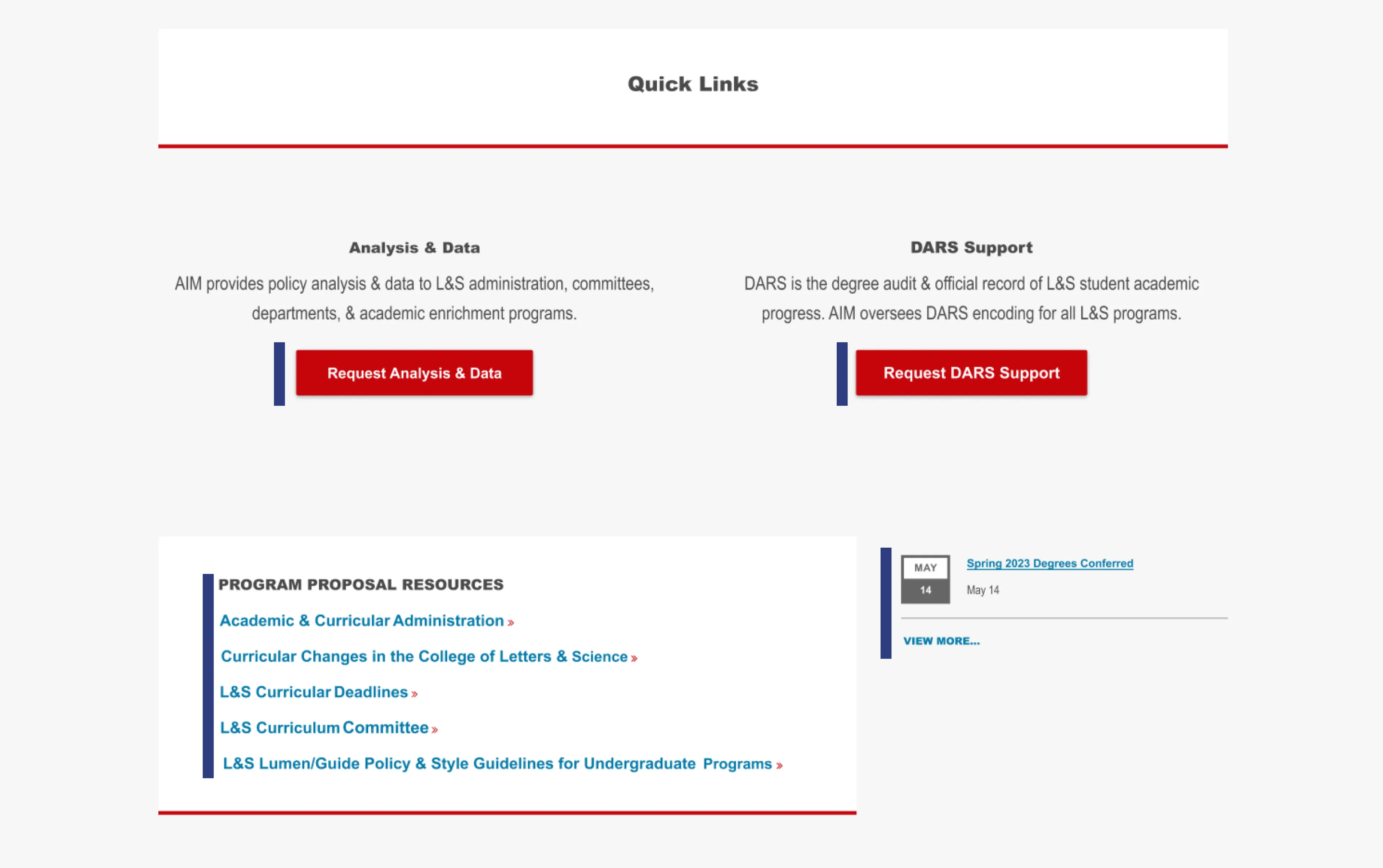
The current home page of the AIM website needs more context and includes numerous unnecessary items that do not provide users with helpful direction (as shown in the left image). During the usability testing, users expressed confusion, stating that they thought some items were nice, but they needed to know how they related to them. In response to this feedback, the proposed design was created to guide users on how to start on the home page.
The changes received positive feedback from users, with comments such as "I can now immediately know what AIM does and its services" and "The layout is intuitive, and I won't be confused anymore."
2. Link with Context without Confusion
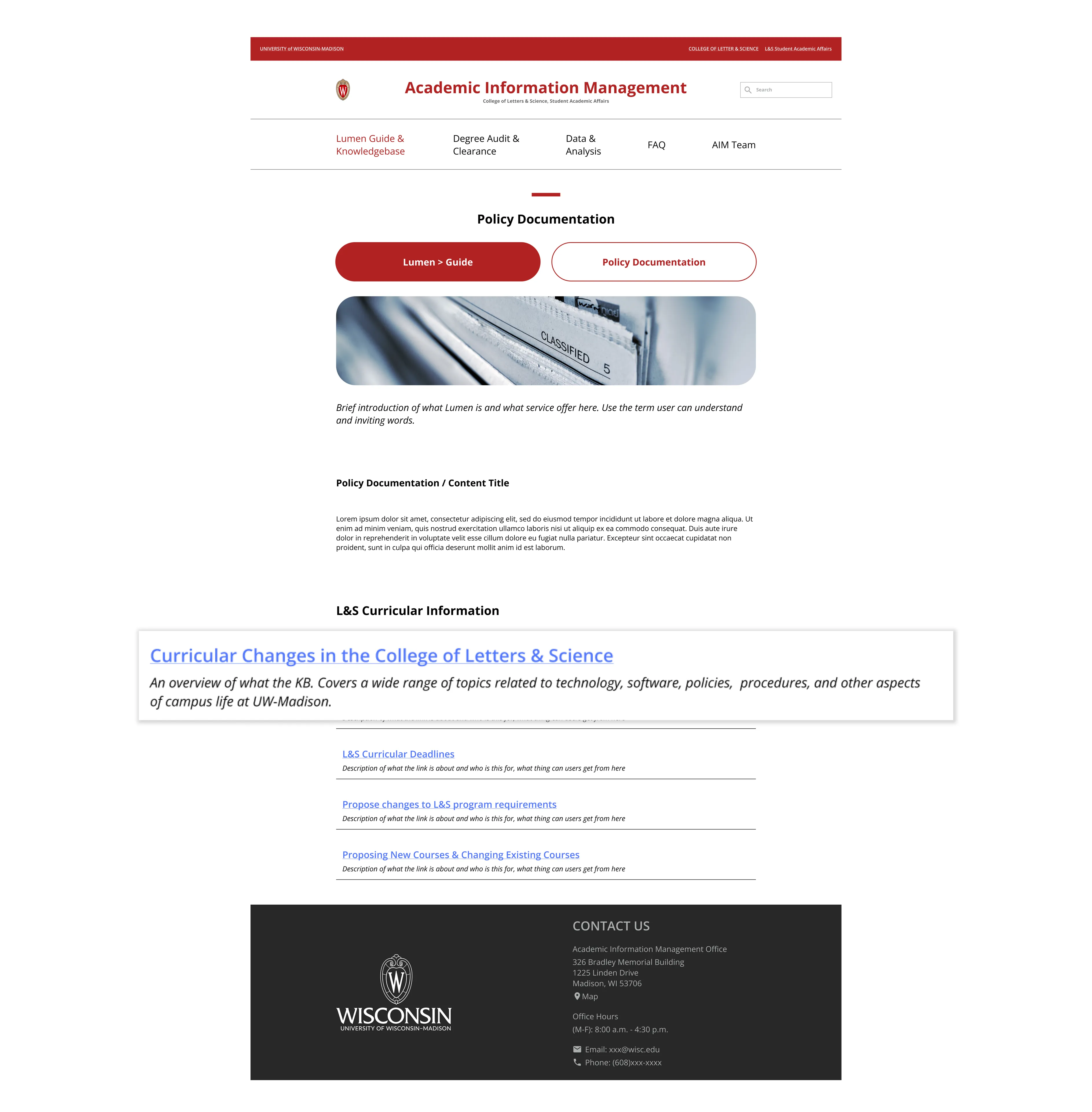
Providing context with the link helps users understand where they will be directed if they click on it, making it clear and understandable. Users can quickly find the information they are looking for, improving the website's overall usability. Screen readers often rely on descriptions to navigate.
3. Effortless Connect with the team
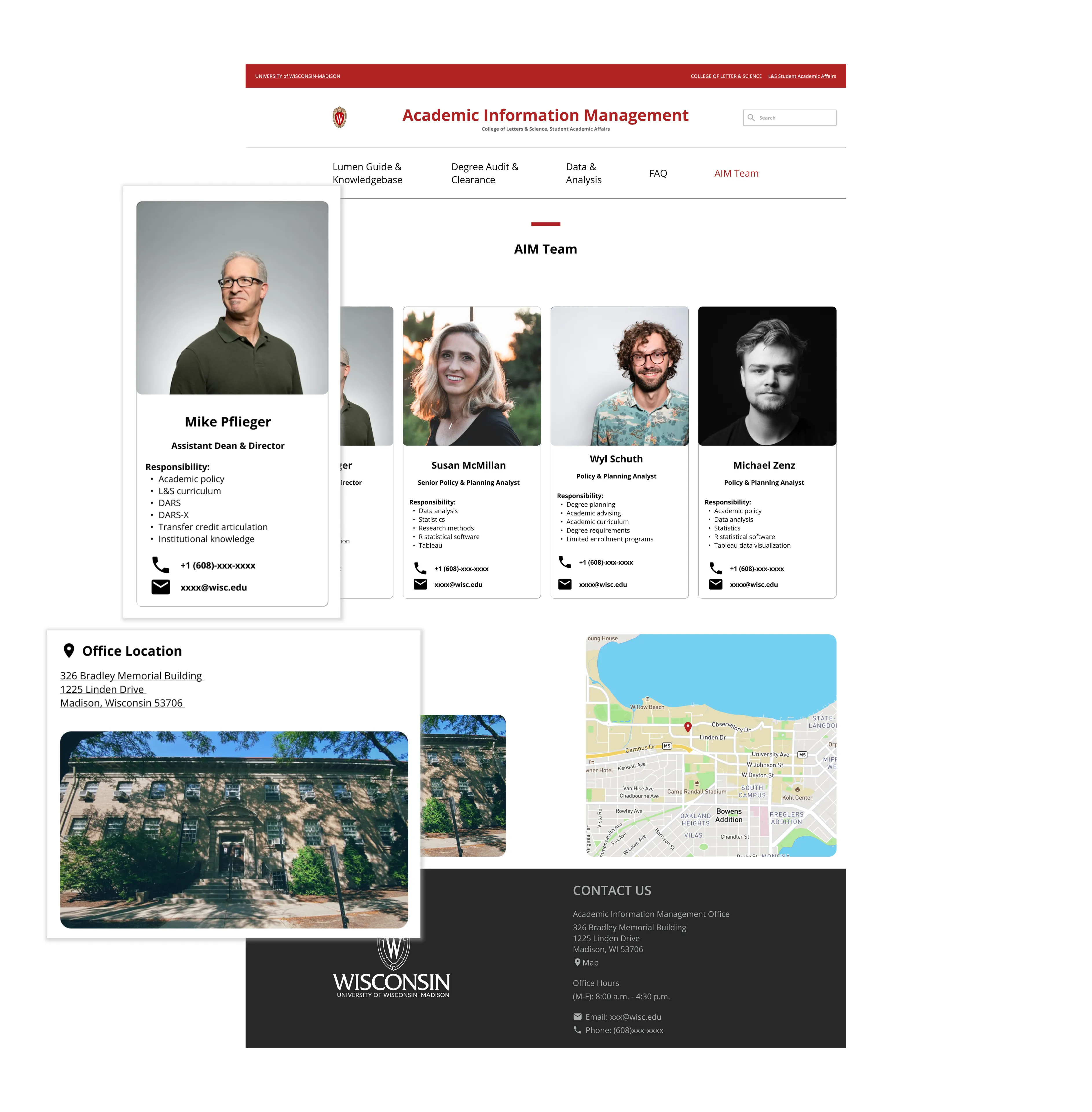
Listing each team member's responsibility and contact information helps users quickly identify the person they need to contact. Including icons makes it easier for users to recognize the available contact options.
Demo
Impact
What Stakeholder Say About Me

Design Process
Research
Begin with comparative analysis then conduct interviews
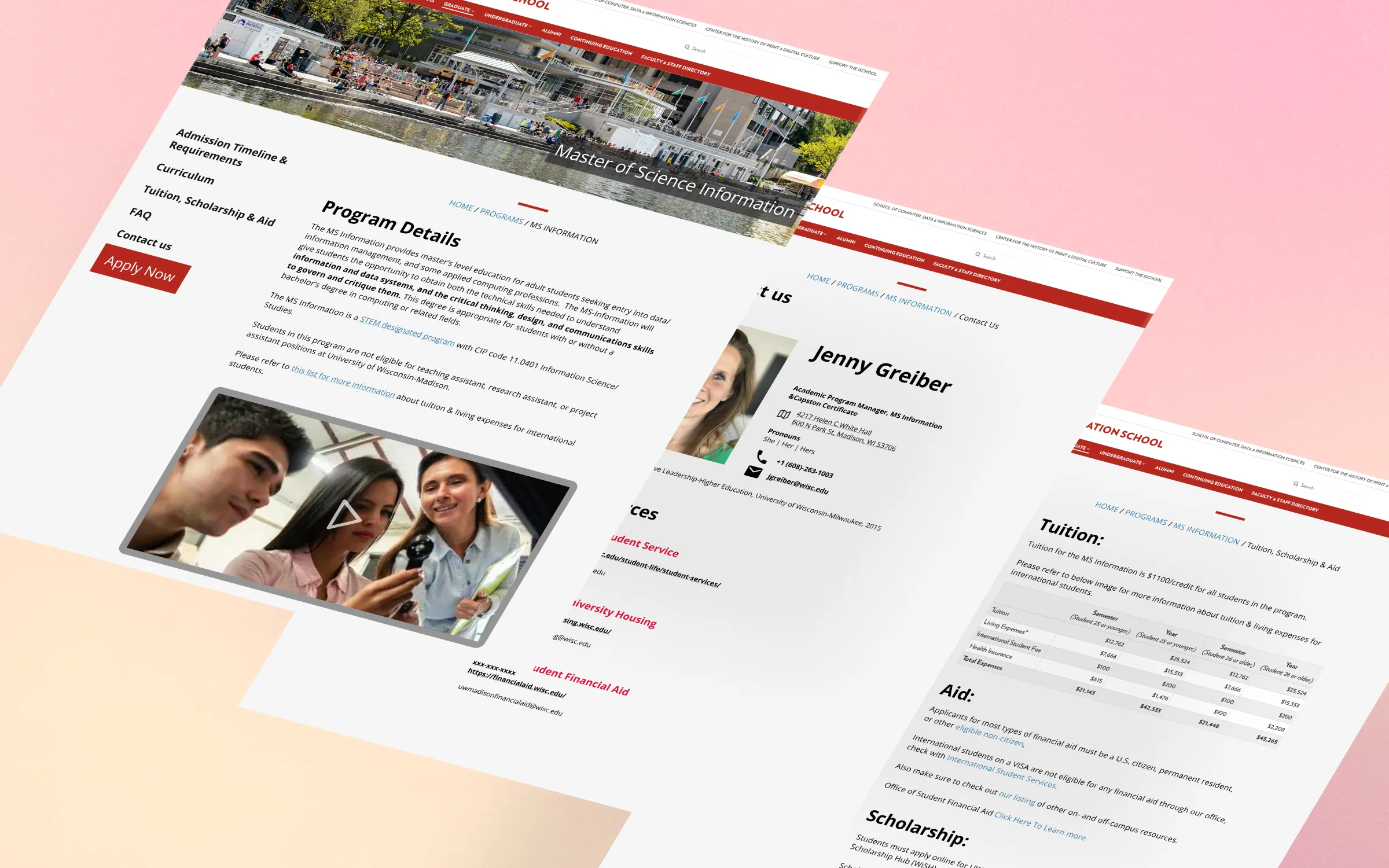
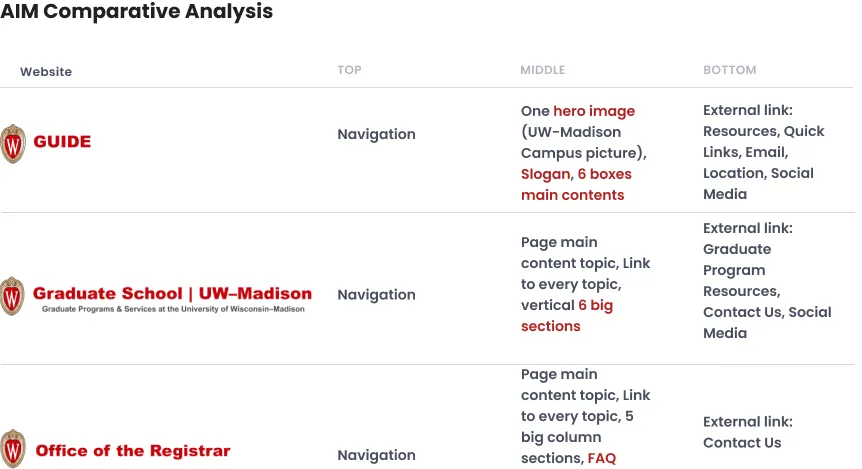
Due to the limitations of implementing WordPress school themes in the future, I decided to conduct a comparative analysis of other websites (UW-Madison: Guide, Graduate School Website, and Office of the Registrar) recommended by the manager to understand their information architecture. Before conducting interviews, I debriefed the manager on how these websites were organized and asked for feedback on his preferred style or layout. This approach helped me balance the future design limitations and the manager's expectations.
Interview
I interviewed eight target users recommended by the manager, asked about their past experiences with the AIM website, previewed the home page, navigation bar, and core functions page, and followed up with any additional questions. With this research, I discovered the following pain points:
- Home page: contain many unnecessary contents (Program proposal resources, calendar), confusing users, and feeling are they helpful for them? Both buttons direct to different things, one is the website, and one is the Google form.
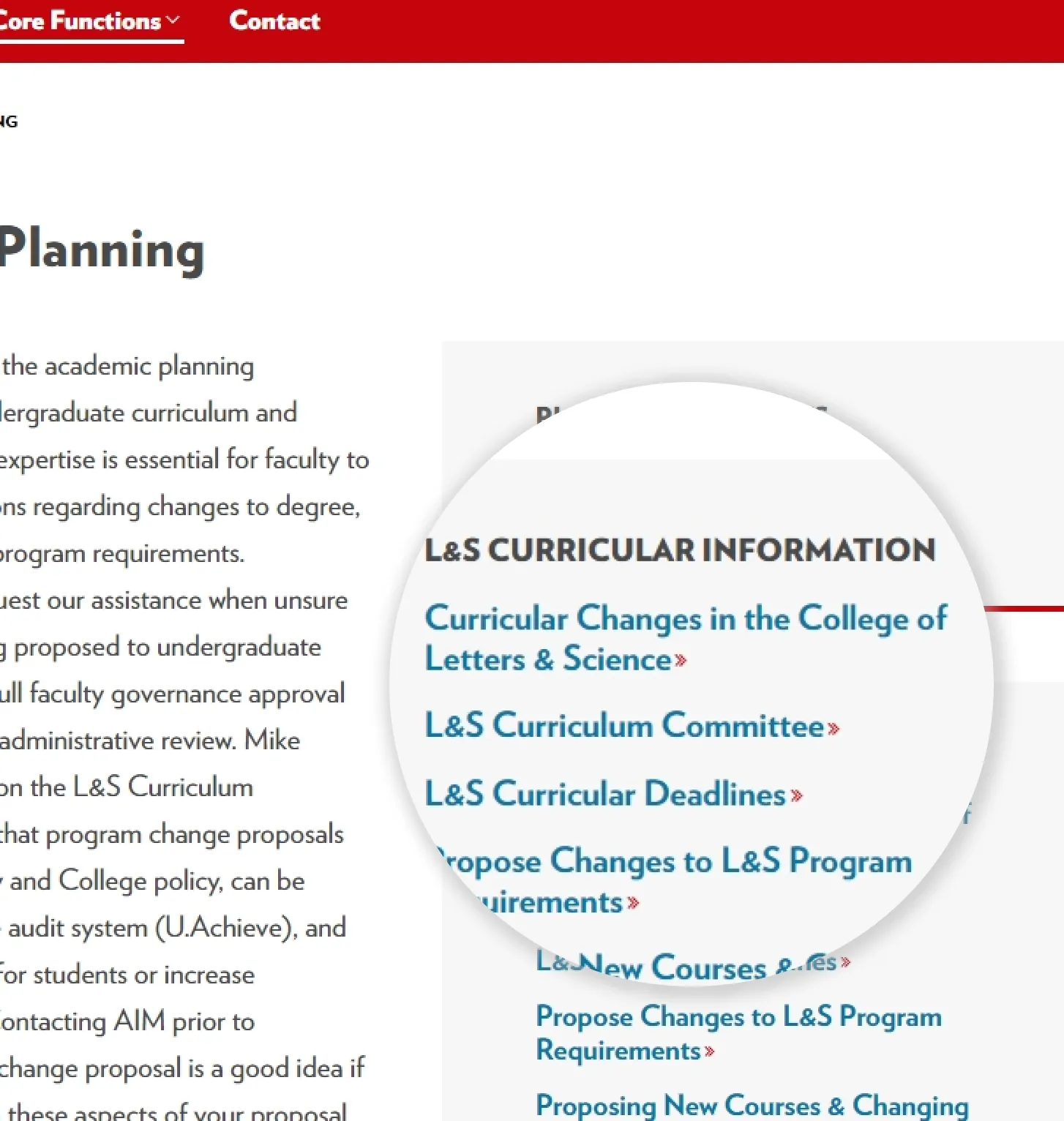
- Core Function page: rich text-based requires users to scan for a while. The link on the right side does not tell users what it is. The organization of each page is inconsistent, so users need to get used to the organization of each new page layout.
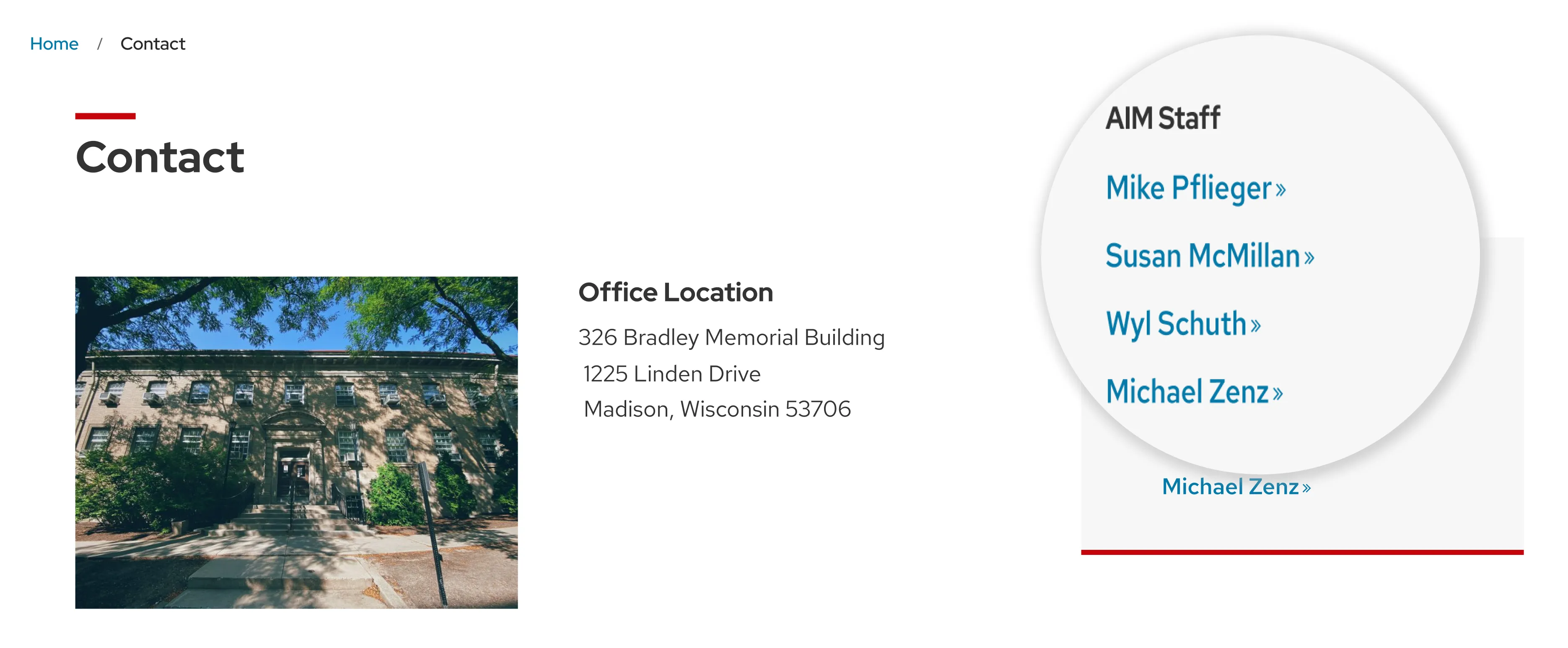
- Contact page: redundant section (People and Contact have similar contents). The most important information is hiding in the core function, and the text title has no meaning for users.
Personas
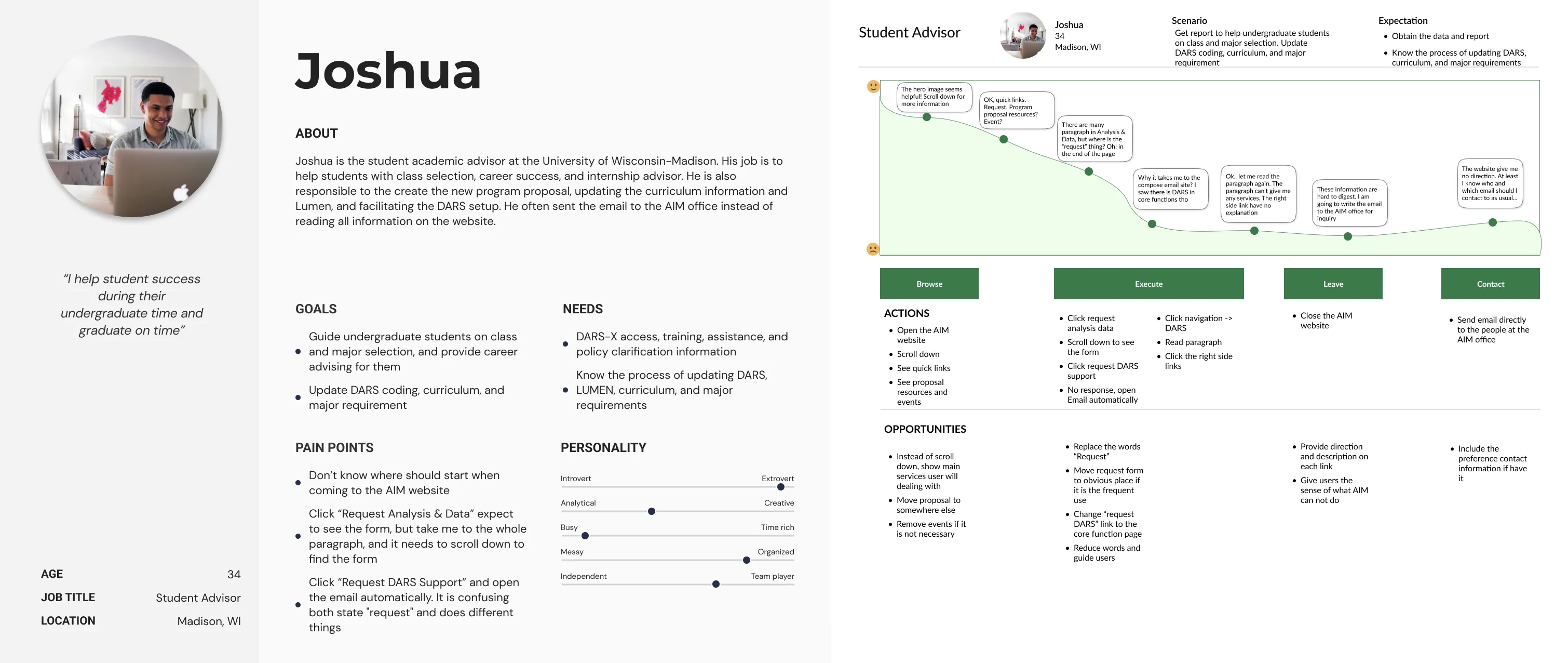
Based on this information, I have created four personas that can help address the identified pain points. I will report these personas to the manager and the team. Here is an example of one of the personas (advisor):
Ideation
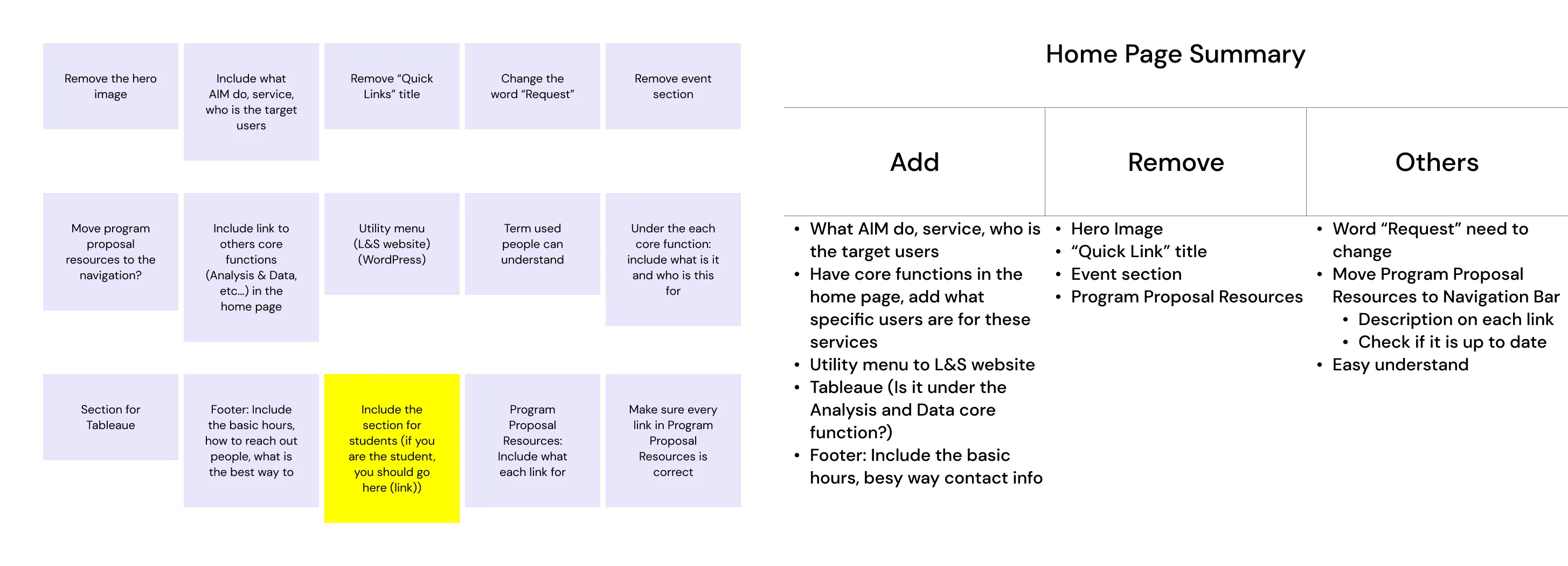
I categorized the finding into three main redesign sections: the Home, Core function, Contact page. I first devised 15 ideas for each and refined them into what I should add and remove from each section.
Ideation helps me effectively generate new opportunities to improve the user experience of the Home page, Navigation, and each Core function page.
Key learning
Challenge My Assumptions
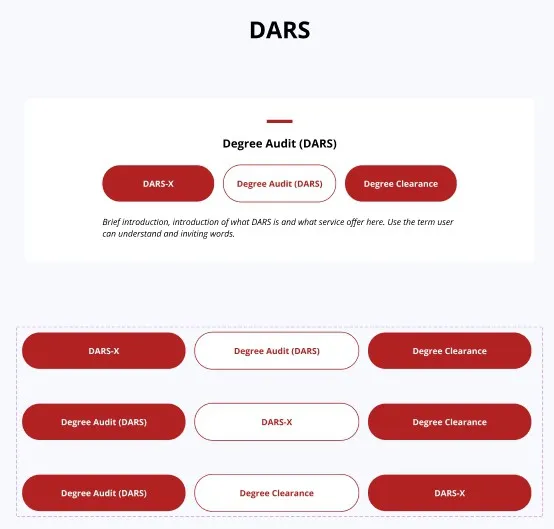
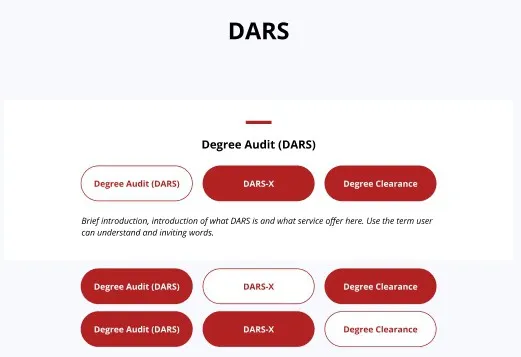
I thought switching to the middle style could help users navigate better because people usually focus on the middle element. However, during testing, I discovered that most users were confused about the button design as it was not intuitive, which made them think the page had not changed. After making changes and not switching to the middle option, I tested again, and all participants were no longer confused.
How I Deal With Negative Feedback
I received design critiques from stakeholders regarding a specific section of the website. They wanted to include a "What's new" section, but user confusion and questioning its usefulness led me to remove it. I carefully listened to their concerns, scheduled a meeting to understand their expectations, and revised the design accordingly. The stakeholders were pleased with the changes and appreciated my receptiveness to feedback and effective communication. This experience taught me the importance of feedback and effective communication in design, skills I continue to value.
Optimizing Design System Efficiency with Component Properties and Features
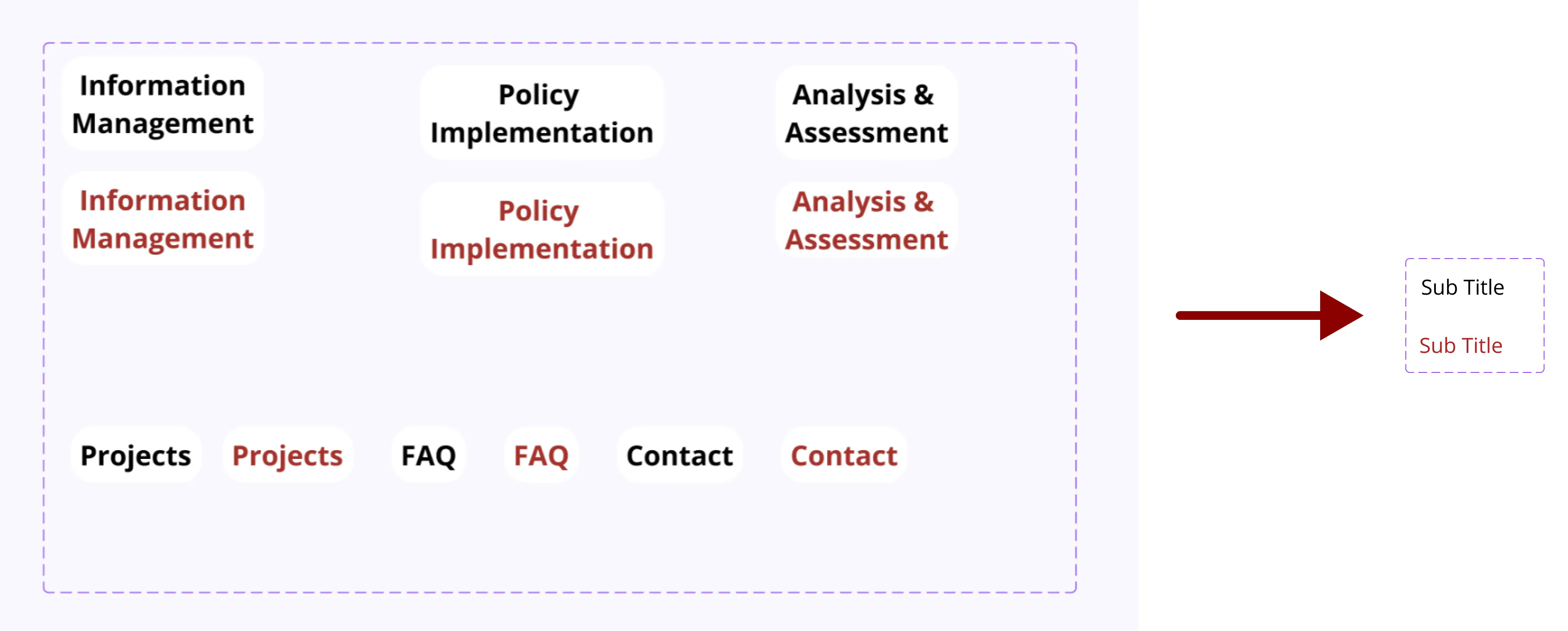
Previously, I had every section's title name presented with a highlighted and non-highlighted option. However, by utilizing the component property of "text," I could easily create many variants. With only one component to change the text, it saves time and better organizes the design system while providing the same options with fewer variants. Furthermore, I discovered that the "Instance Swap" and "Boolean" features helped manage the library with even fewer variants.