UniRing Robotics
Reframing MIO V2's Cleaning Robotic Interface
- Robotic
- UX Research
- UX Design
- Design System
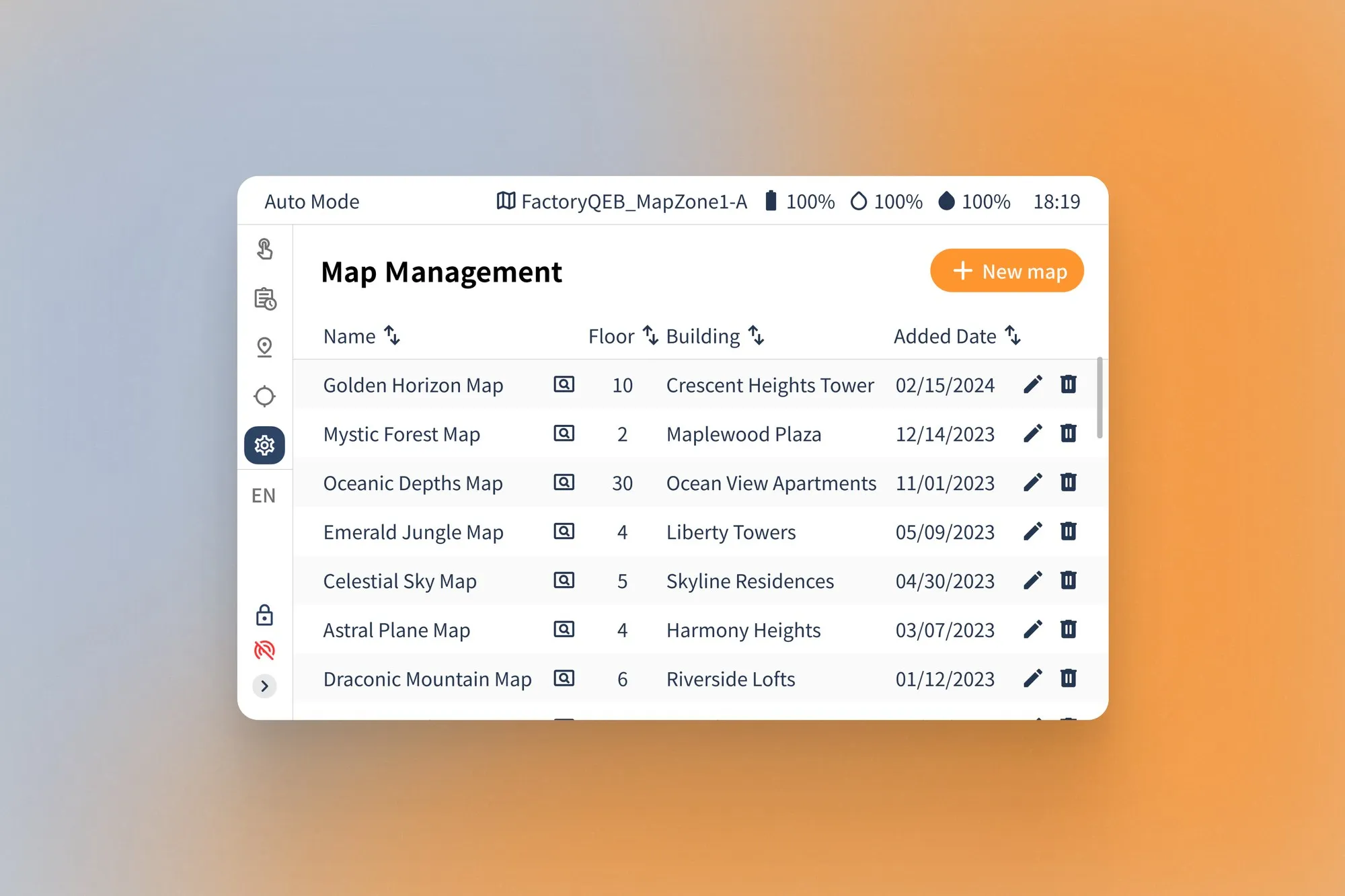
MIO V2 is a commercial floor cleaner that excels in agility and is perfect for office, hotel, and school environments. This V2 improves upon its predecessor by integrating a tablet interface with revised user flows, simplifying navigation and map management. Focusing on intuitive operation and effortless learning, MIO V2 addresses user feedback from V1 to significantly reduce complexity and enhance usability. We broke it down into four categories, and I was mainly responsible for Map Management.
- My role
- UX Designer
- Team
- 4 UX Designers, 1 Project Manager, 2 Engineers, 1 Director
- Duration
- 3 months
Background
MIO V1, designed primarily for functionality, required a laptop for setup, map scanning, and task management. This approach, focusing more on technical capabilities than user experience, made navigating the system complex and challenging.
Problem
Feedback on MIO V1 pointed out its complex user interface, causing user confusion and operational difficulties. In response, the company recognized the need for a more user-friendly approach. Consequently, MIO V2 was designed with an integrated iPad screen interface to provide a more intuitive user experience and address these usability concerns.
Challenge
How might we redesign MIO V2's user interface to simplify map creation and cleaning scheduling, enhancing user clarity and operational ease?
Key Features
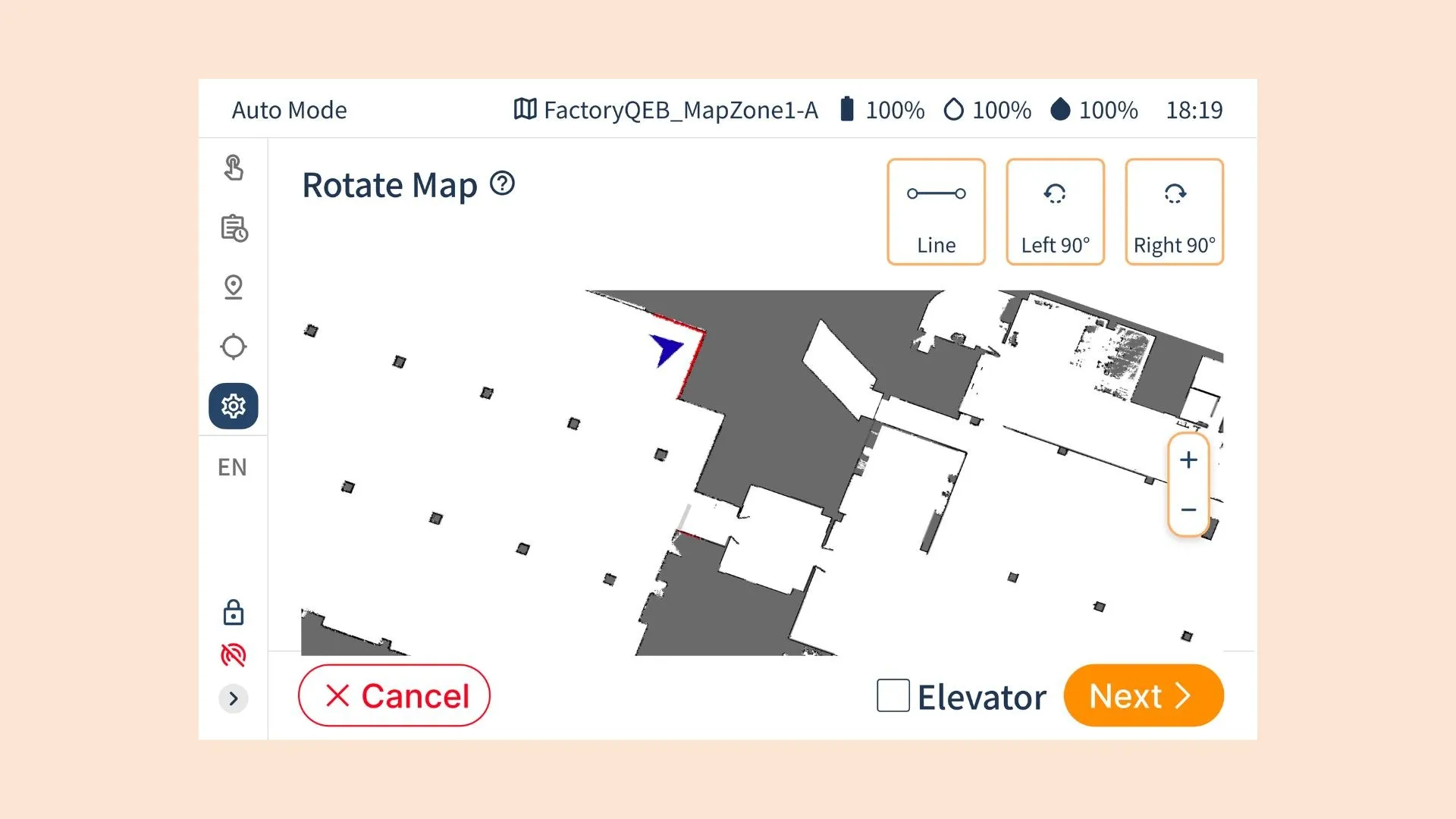
Map Rotation
V1 Challenge: Finding and utilizing the map rotation function was complex and limited.
V2 Improvement: Streamlined access with intuitive controls and help guidance. Enhanced functionality allows easy alignment with physical walls, reducing guesswork and improving accuracy.
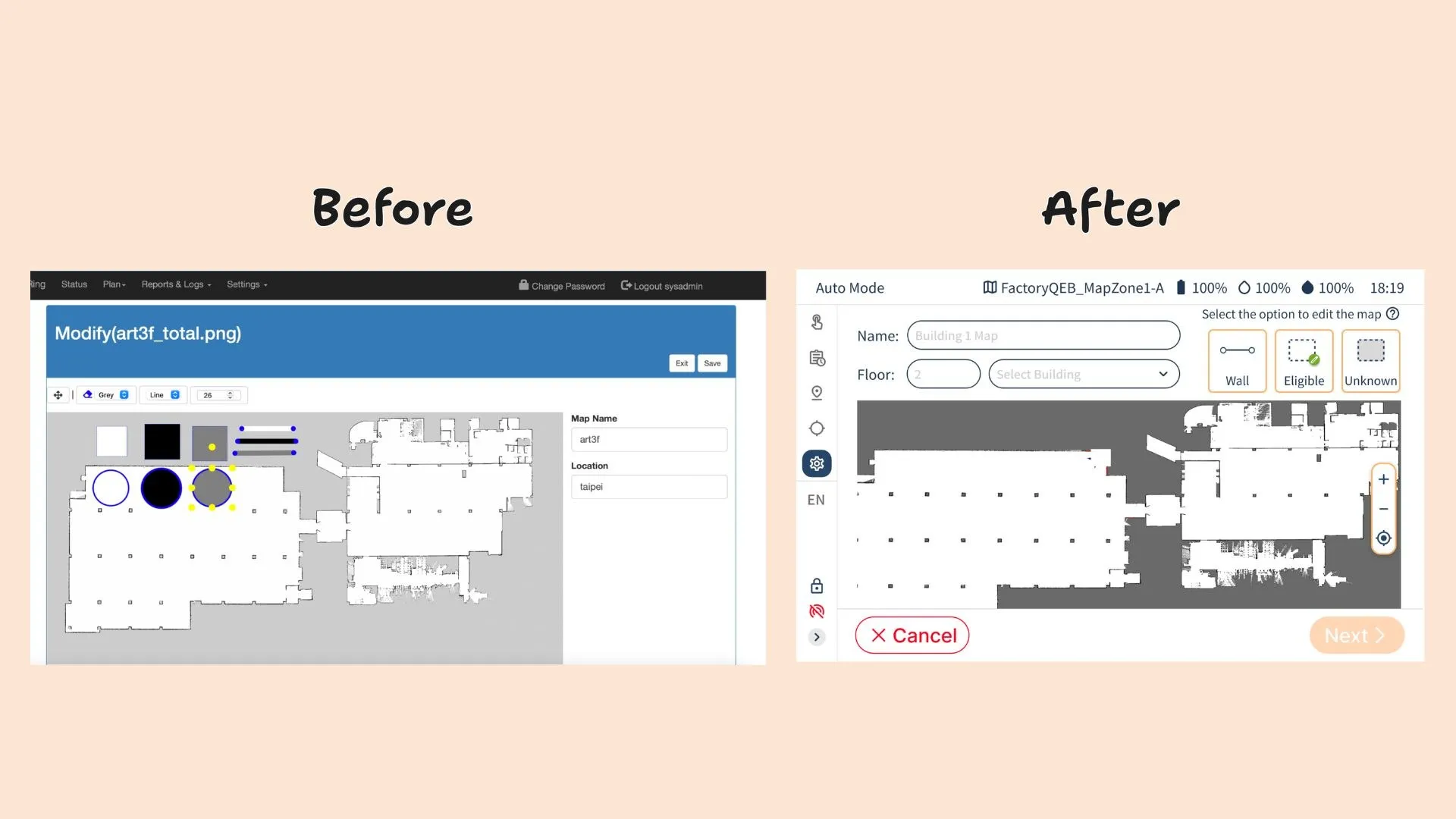
Map Editing
V1 Challenge: Lack of contexts. Limited to basic shapes (circle, rectangle, line) for defining areas, leading to a lack of precision and adaptability to real-world layouts.
V2 Improvement: Custom shape creation for enhanced precision in defining areas. Includes a Help Guide for quick user onboarding and efficient troubleshooting.
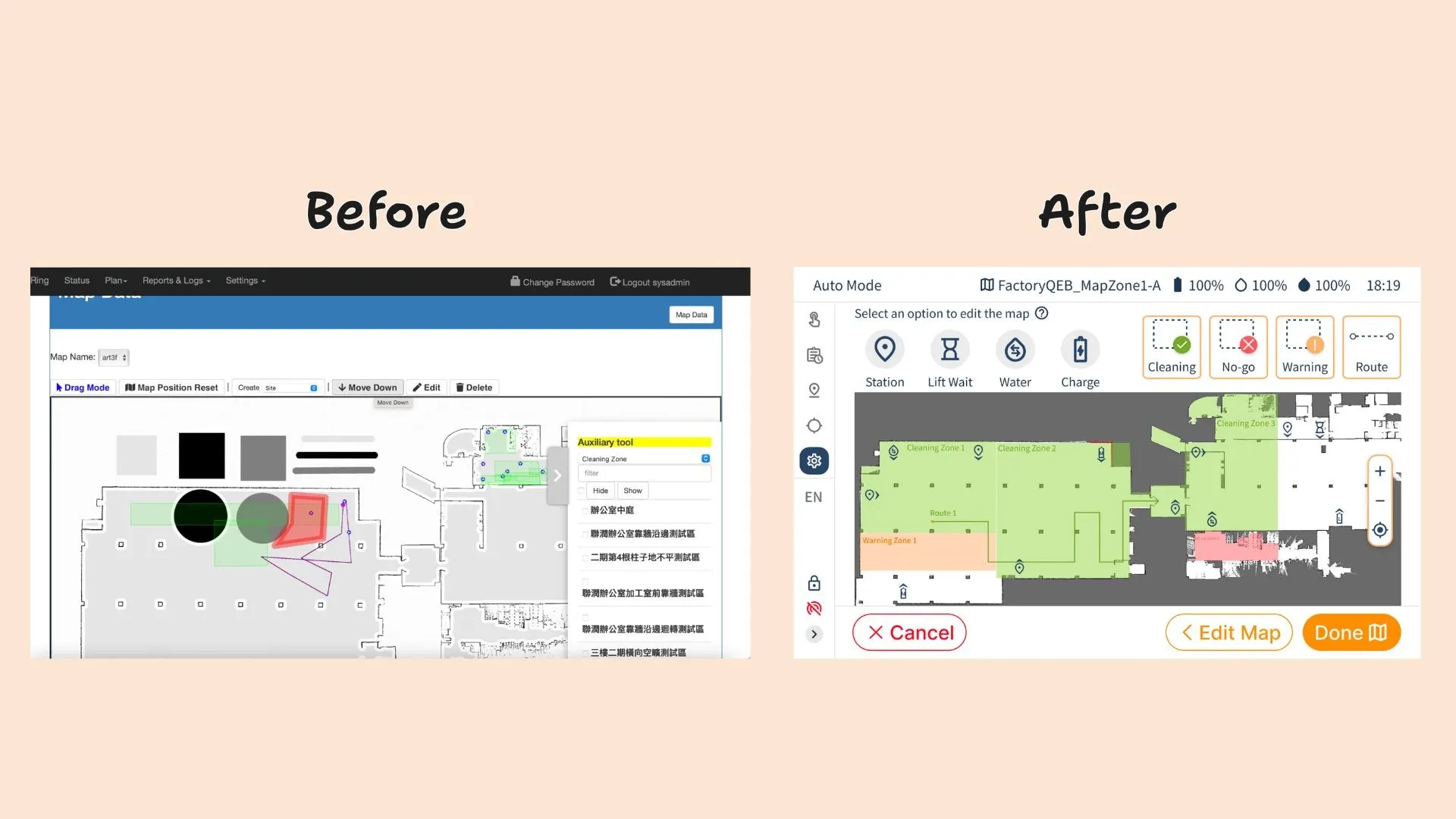
Type & Zone Configuration
V1 Challenge: Limited shape options restricted user control in defining zones. Route editing was inflexible; a wrong move required deleting the entire route.
V2 Improvement: Custom shape creation for zones. Route editing includes backtracking functionality, eliminating the need to redraw entire routes.
Design Process
Reframe User Flow
Streamlining MIO V2: A User Flow Transformation
We initiated our journey by reframing MIO V2's user flow, driven by the need to enhance the user experience, which was overlooked in the MVP of V1. This resulted in a steep learning curve for users, who struggled with the system's complexity. To resolve this, we reorganized the workflow, categorizing and renaming the functions into four main steps: Map Management, Template Management, Task Management, and Task Scheduler.
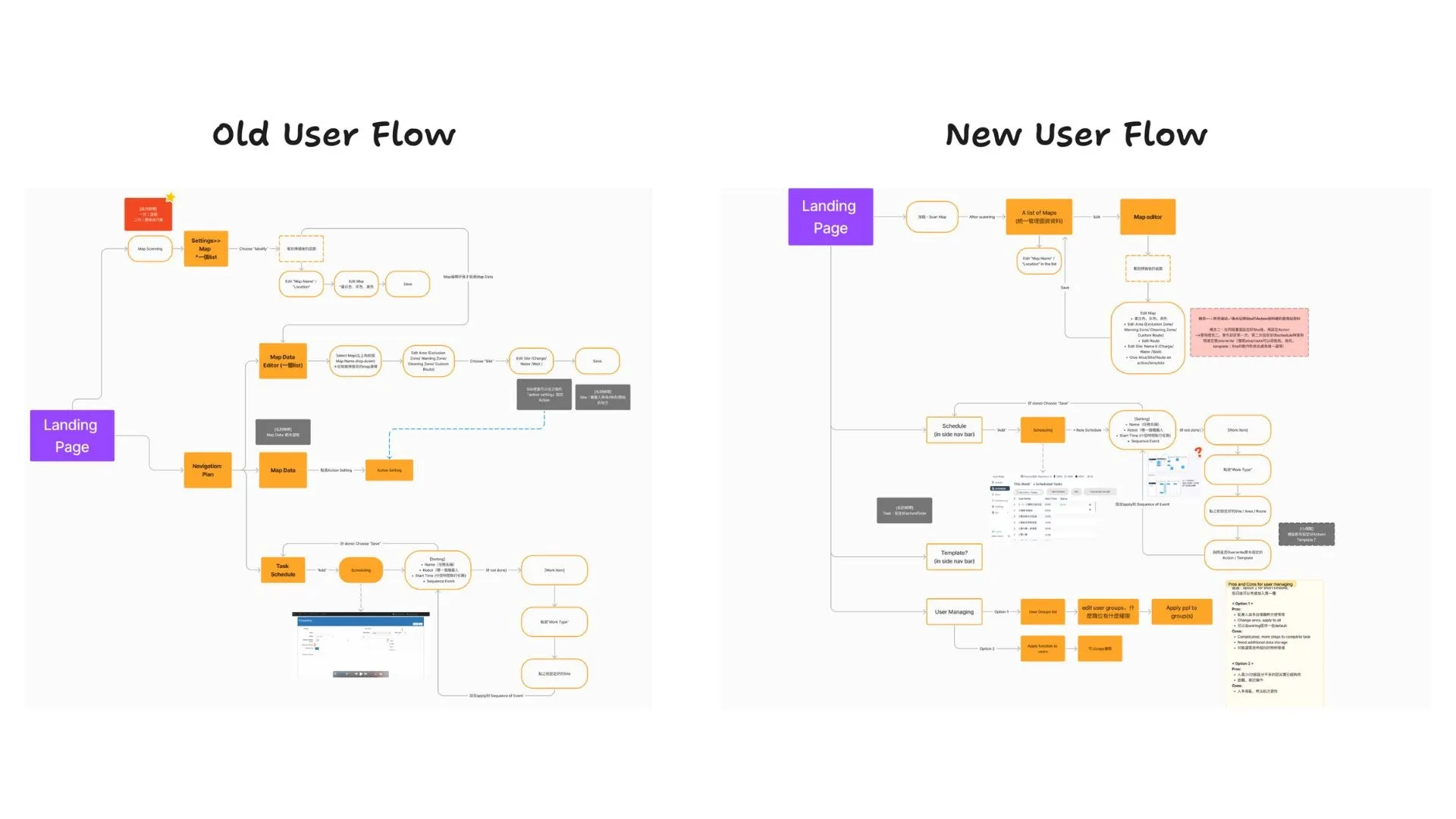
In this reframed process, we regularly discussed to ensure the new user flow aligned with the project's vision and exceeded expectations. The regular discussion between design and development was vital to creating a user flow that was technically feasible, efficient, and aligned with business goals.
Ideation
Creative Divergence and Convergence: Ideating MIO V2's Design Path
We dedicated time to brainstorming the overall design direction for MIO V2. This involved collaborative sessions to gain consensus on the initial concepts, followed by crafting low-fidelity designs for each main function on Figma.
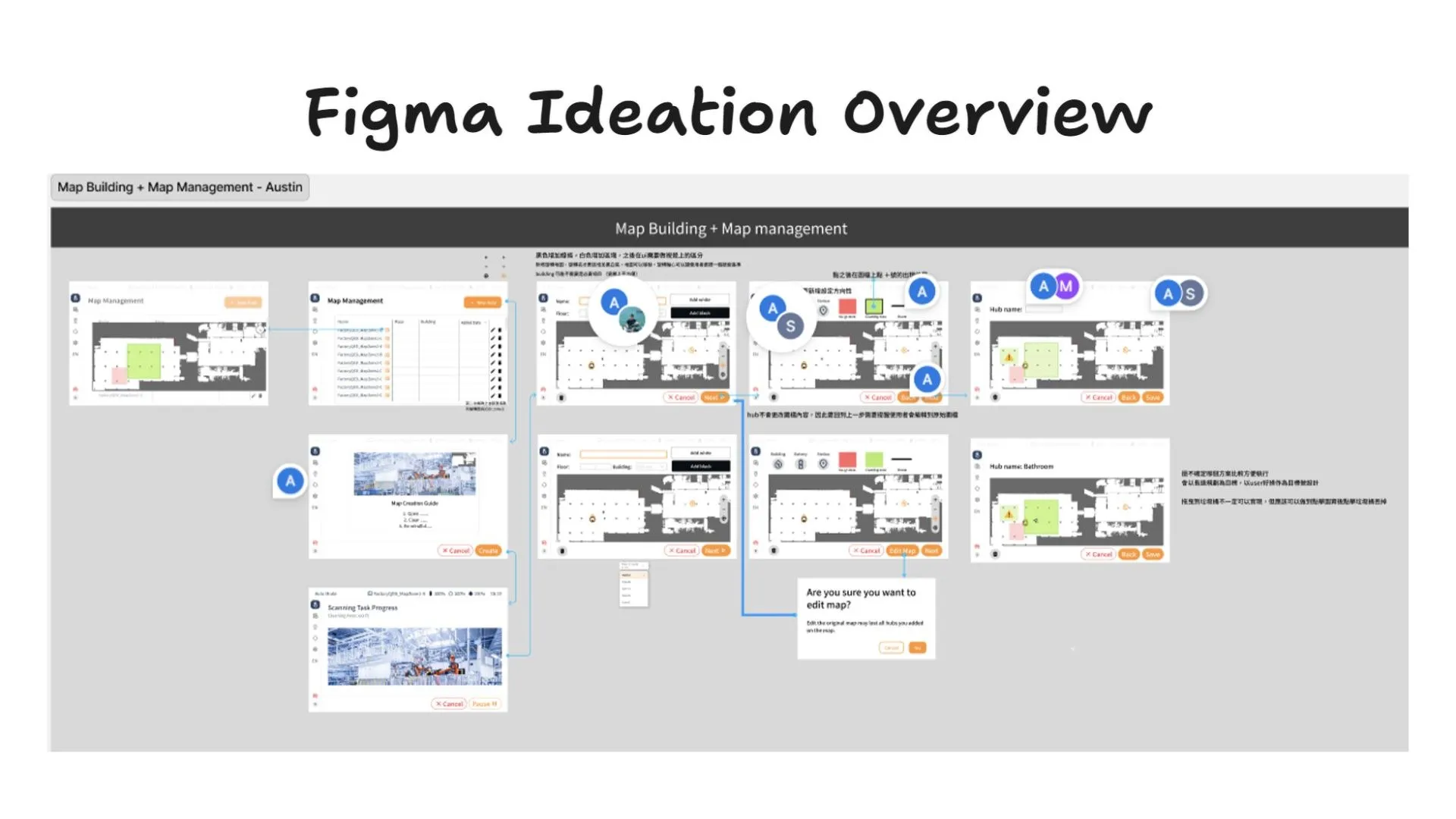
My primary focus was on Map Building and Management, a crucial element for users in creating and editing maps first using the cleaning machine. Throughout the wireframing process, our team maintained a supportive and communicative environment. It ensured alignment and consistency in our designs, fostering a cohesive approach across all features.
To illustrate our ideation process effectively, I focused on three main features: 'Rotate the Map,' 'Map Editing,' and 'Station & Zone Configuration.' These selections best represent the significant enhancements in MIO V2, highlighting our innovative design solutions clearly and concisely.
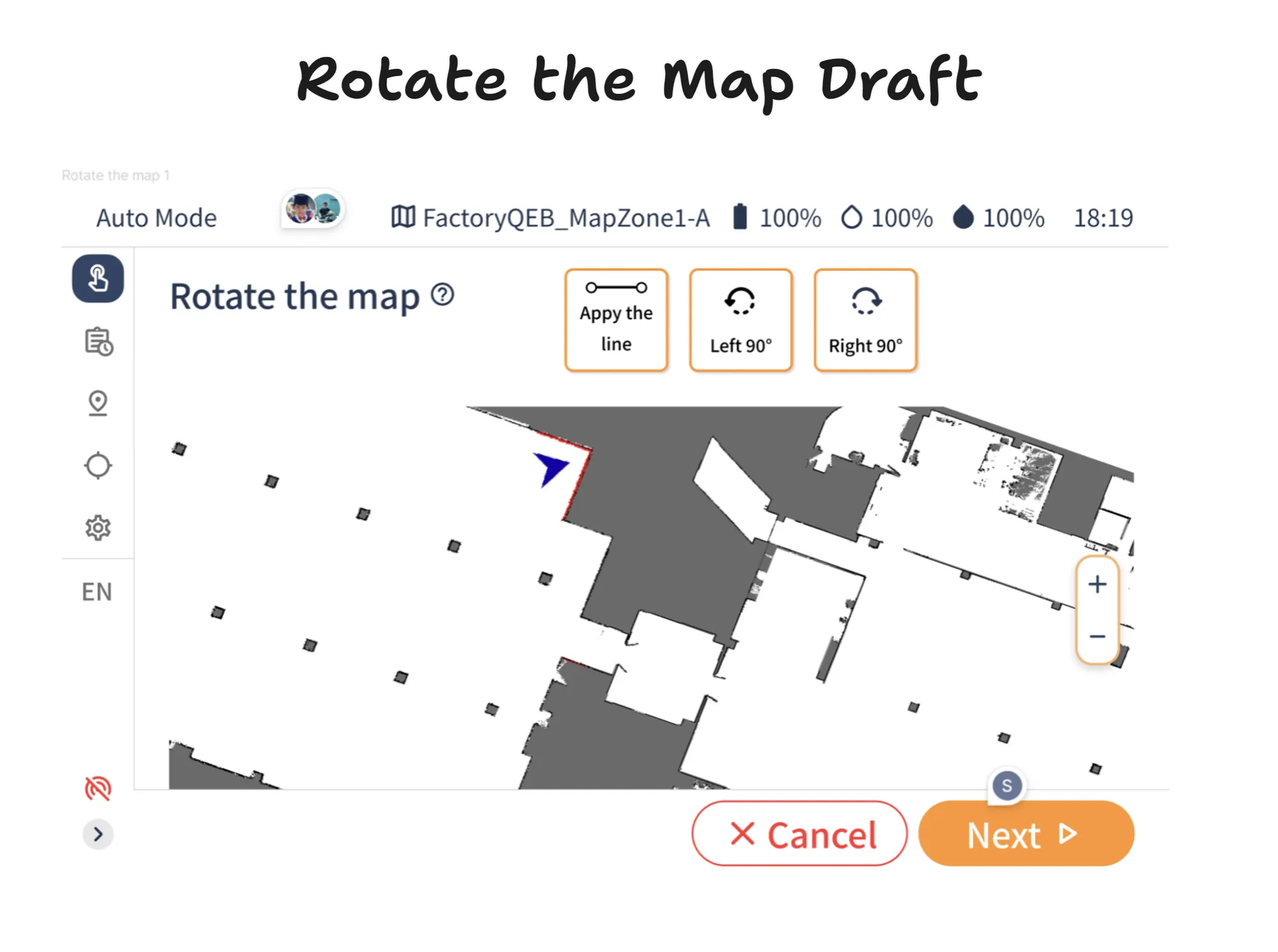
- Rotate the Map: We placed a map rotation function at the interface's top, incorporating previous user feedback. This feature, occupying a significant portion of the interface, was born from the need to correct the map orientation post-scanning. Our innovative solution allowed for rotation around a wall line, offering more than just standard 90-degree adjustments.
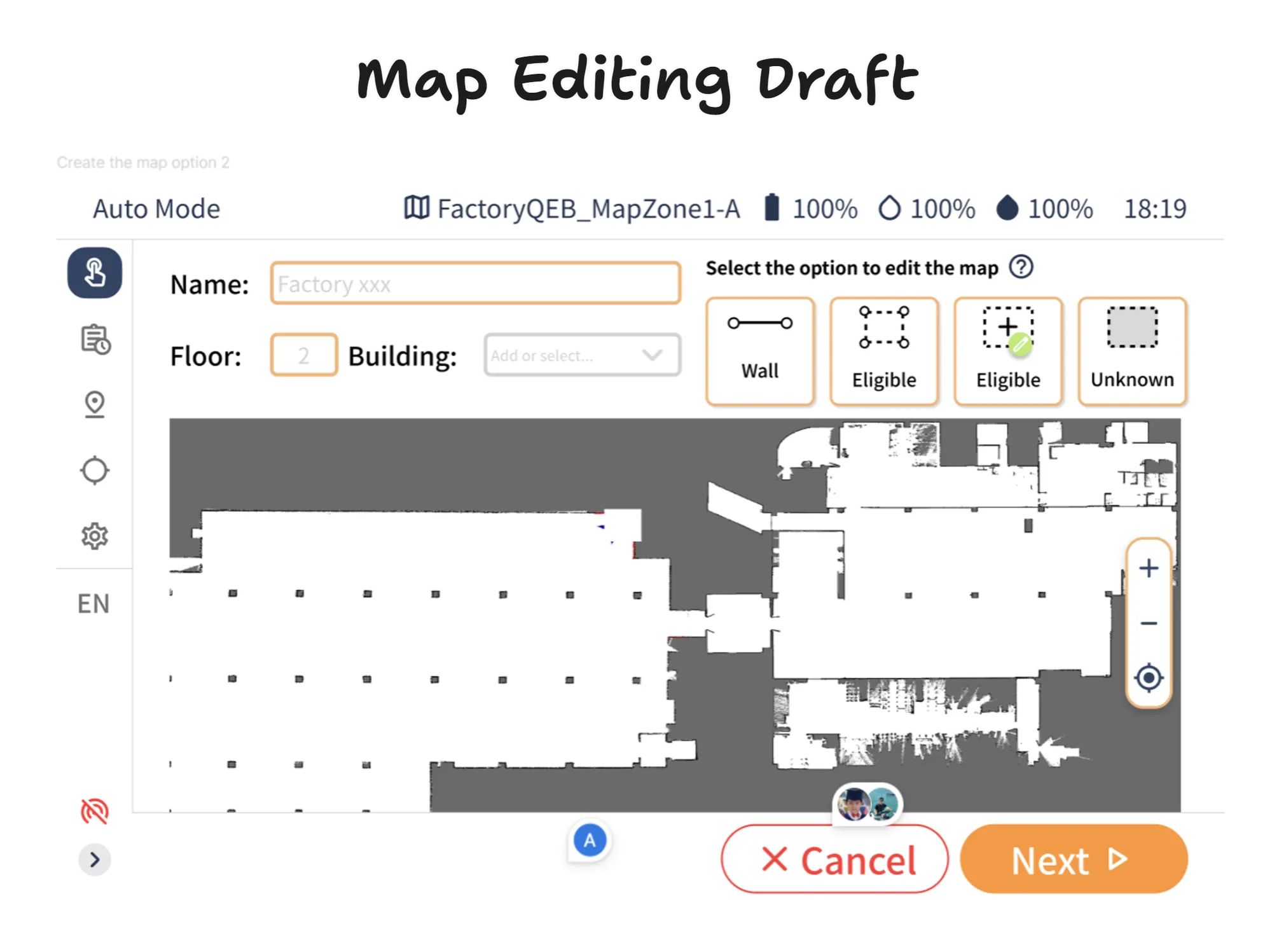
- Map Editing: Mirroring the existing web version for familiarity, this feature includes a user-friendly 'Help' section. Initially questioning user awareness of option functionalities, we integrated help icons for intuitive guidance, streamlining the learning process for effective map editing.
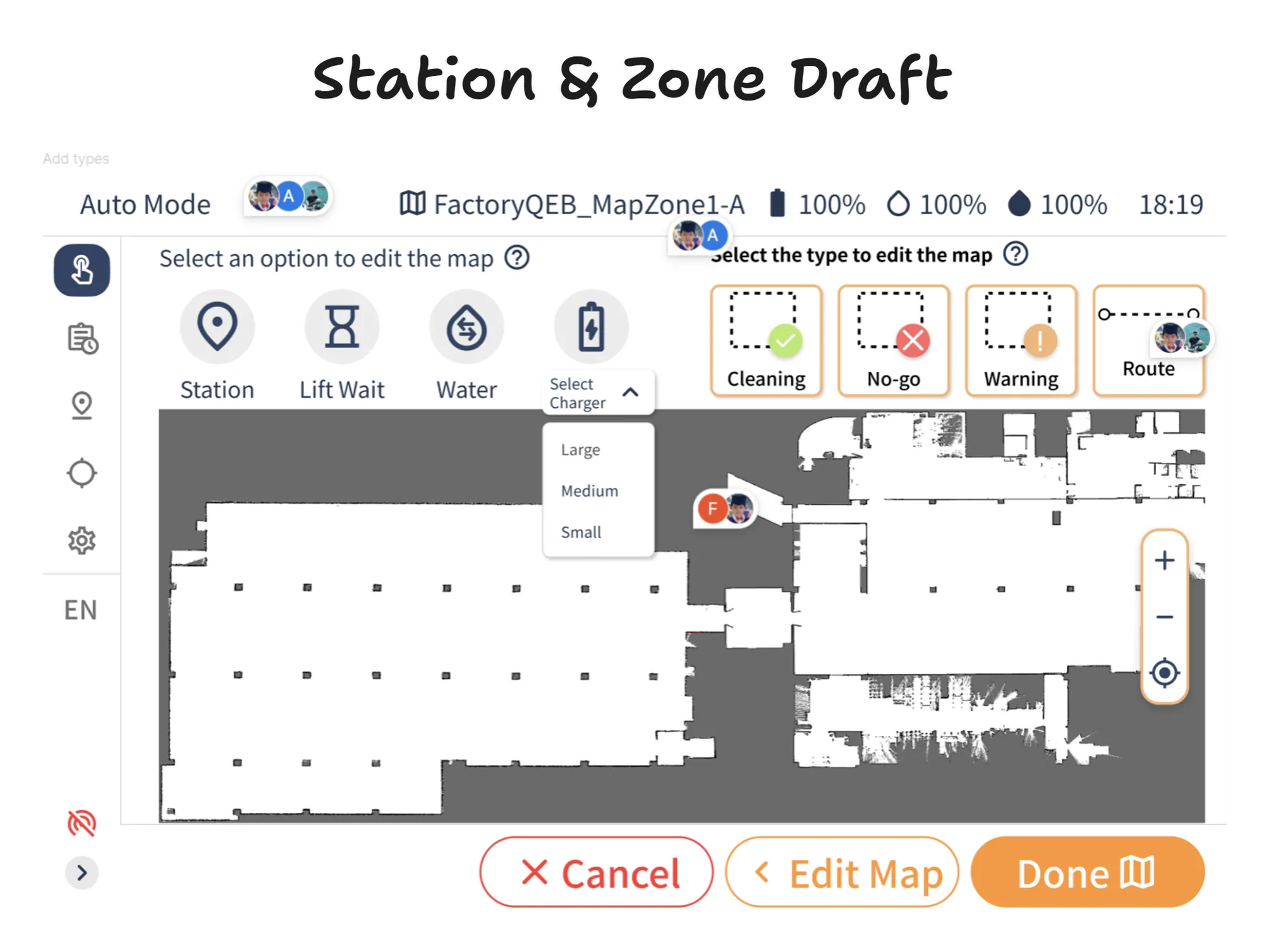
- Station & Zone Configuration: We refined the web version’s features for the screen, differentiating stations and zones for clearer user navigation. Responding to new requirements, we incorporated charger size options and an elevator feature.
Design Evolution
In the design evolution, we iterated the interface through regular meeting updates, balancing technical constraints, business goals, and user feedback. This process involved adapting our initial concepts to practical realities, ensuring the final design was not only technologically sound but also user-centric and aligned with our strategic objectives.
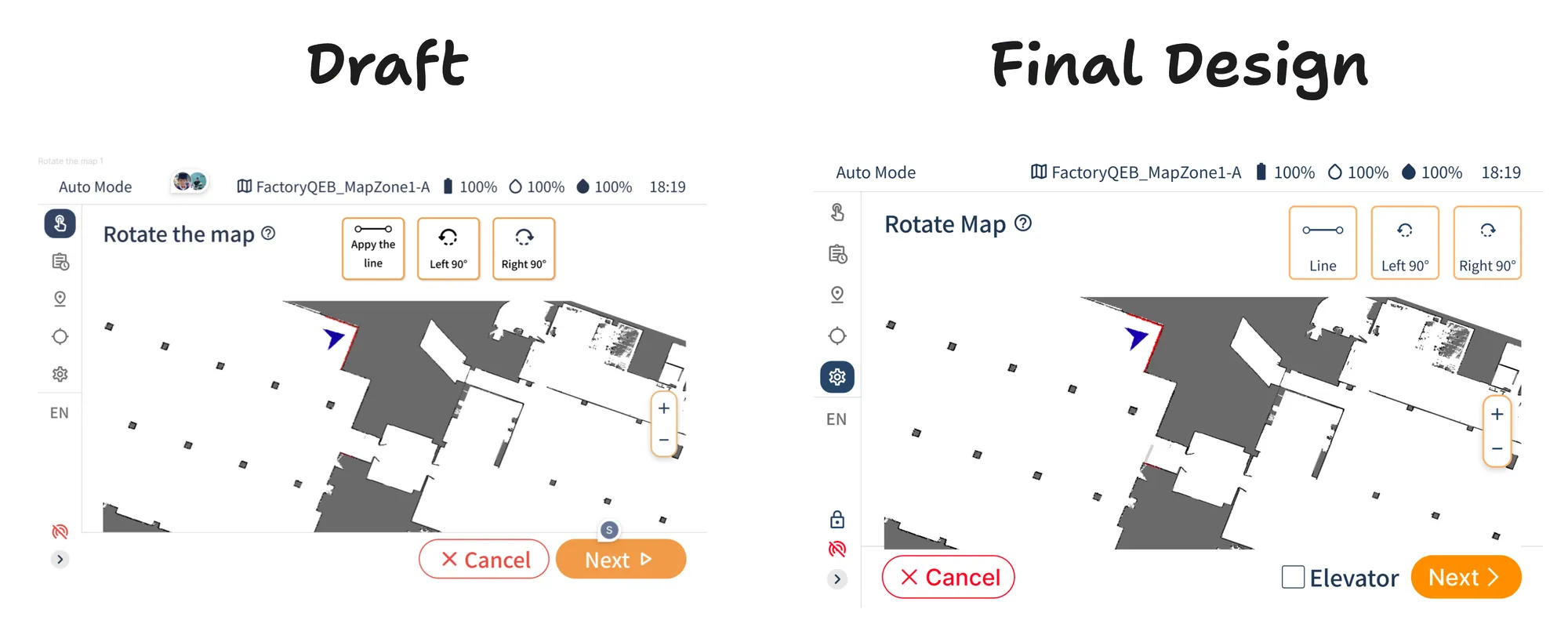
- Rotate the Map: We re-arranged the rotate and cancel buttons for better usability, addressing issues with accidental button presses. A significant addition during this phase was the Elevator feature proposed by the director. It was designed to be an optional element, adaptable to different building layouts. Our solution allows users to select the presence of an elevator during map rotation, leading them to a tailored process for elevator integration if required.
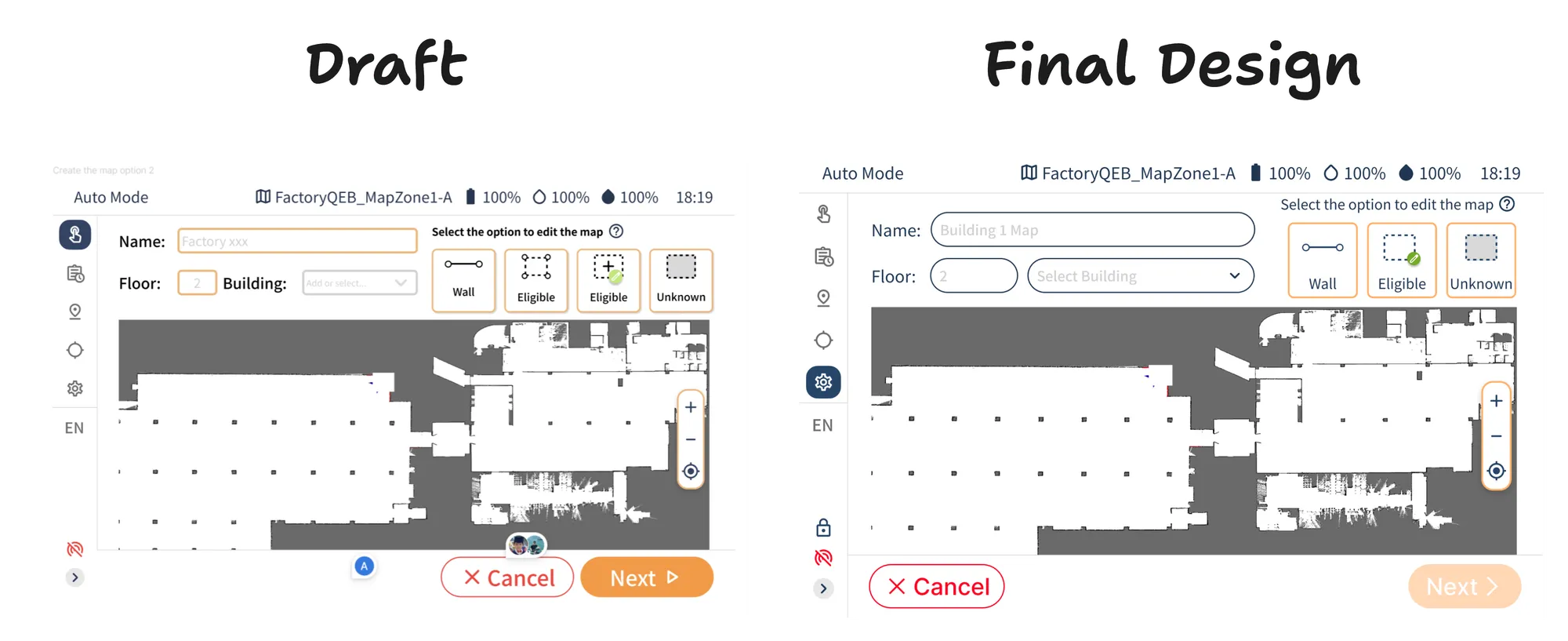
- Map Editing: Our primary focus was to streamline user interaction by combining the Eligible function. Initially, there were two options: shaping an area with nodes and drawing to define the cleaning zone. Recognizing that both served the same purpose, we merged them to minimize user confusion. Additionally, we disabled the Next button until editing, guiding users to complete necessary edits first. This change aligns with the company’s aim to ensure users engage with the editing features effectively.
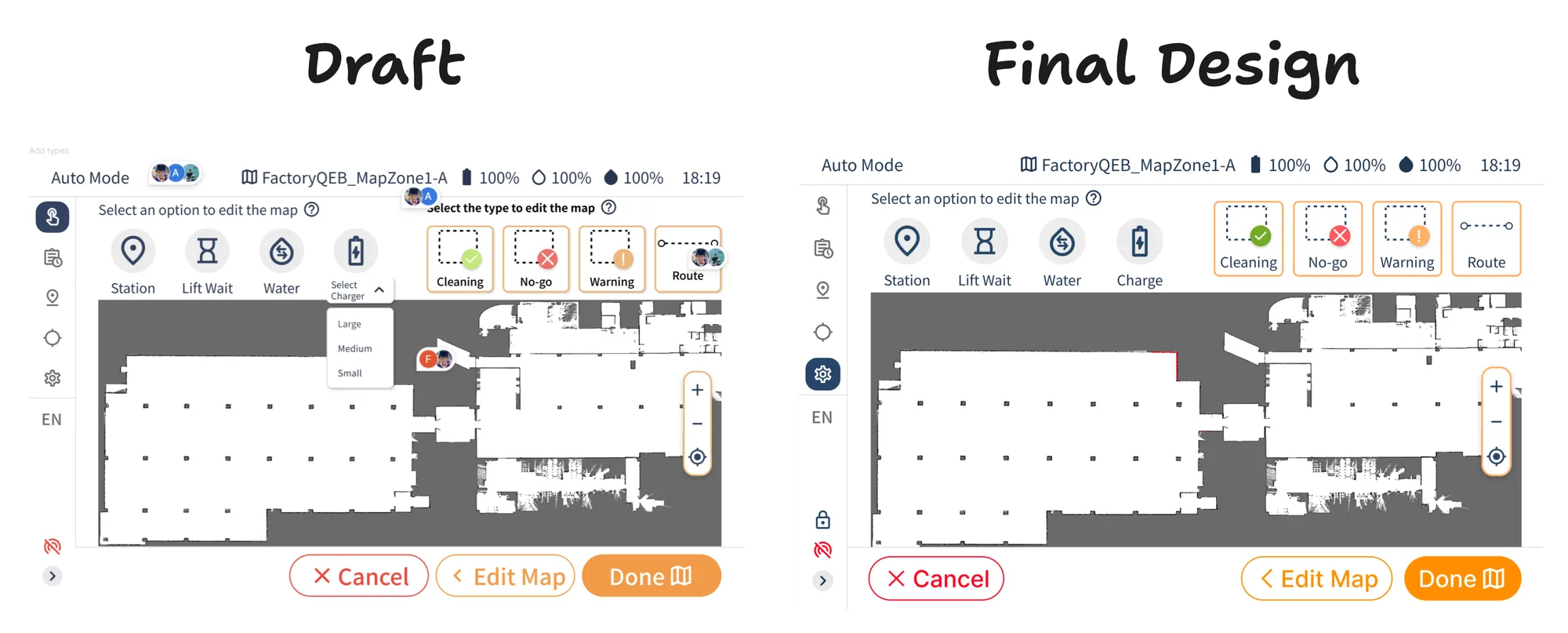
- Station & Zone Configuration: We restructured the Charger type option to a subsequent screen, aligning it with the process for naming and placing other stations. The decision to use 'Lift' instead of 'Elevator' was made due to space constraints on the iPad screen. To streamline the interface, the help section was consolidated, appearing only once to avoid redundancy. This also allowed more space to clearly separate the function of cleaning zones and routes, enhancing the overall layout and usability.
Design System
Color Palette
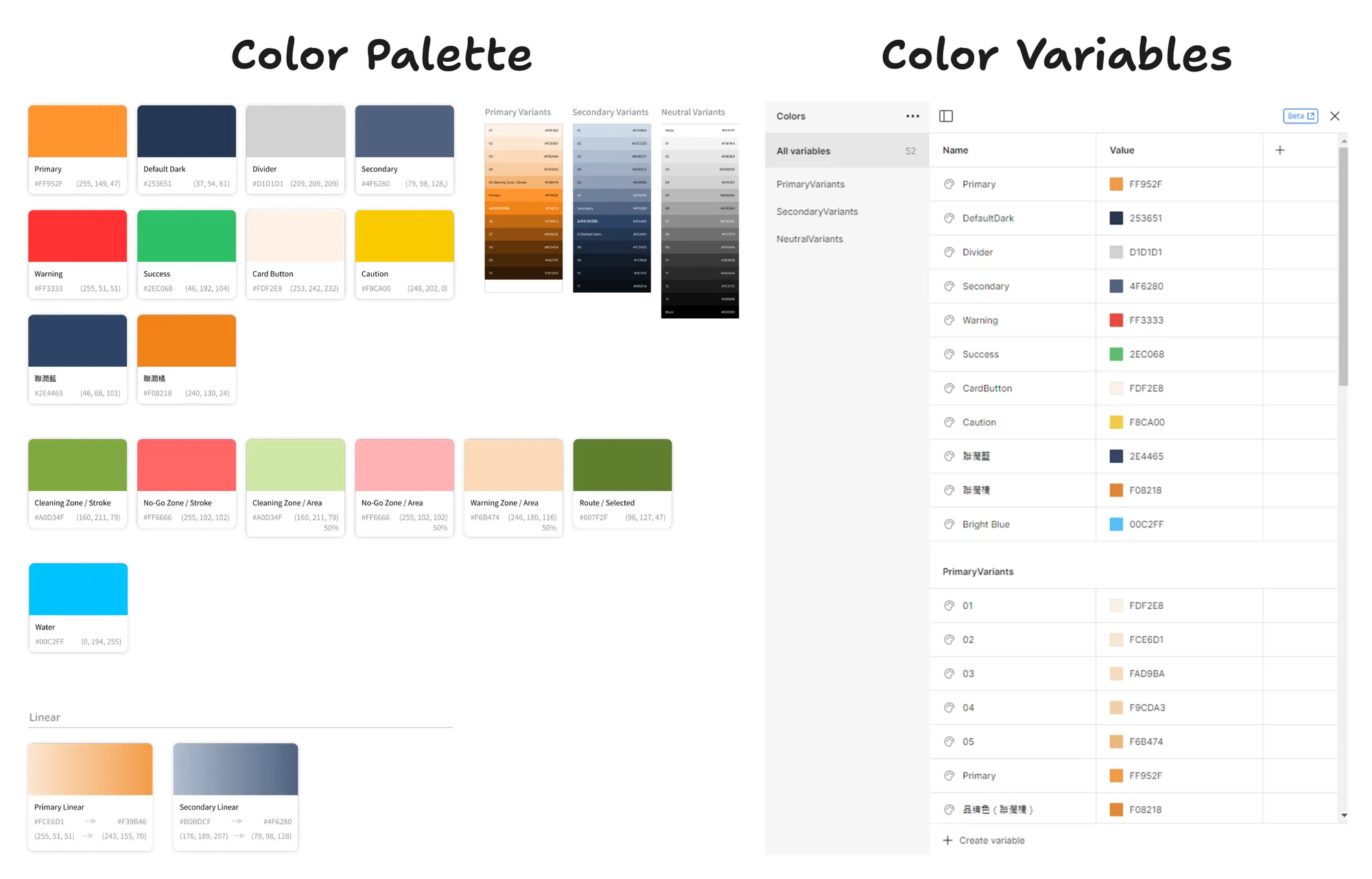
For the color system, we began by referencing the company's existing design palette. Our aim was to ensure brand consistency while also embracing modern trends. Using Figma's variables, we crafted a comprehensive color palette design system. This system allowed us to maintain design consistency and apply colors effectively across various interface elements.
Buttons
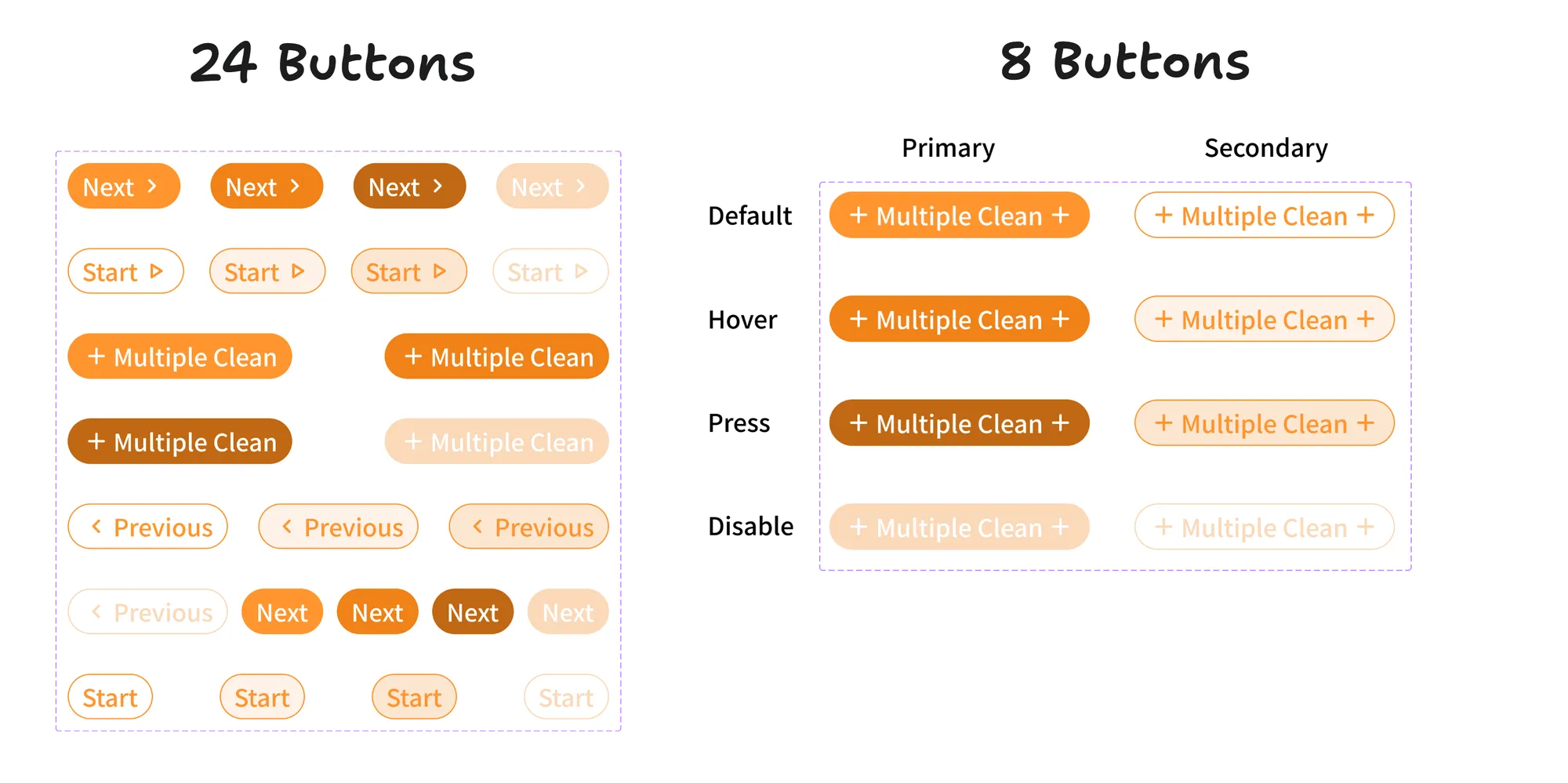
We enhanced design efficiency by optimizing our button system. Initially, we had a cluster of 24 buttons from the previous design file, which I streamlined to just 8. This reduction simplified the design for our team and made it easier for developers to understand different button states.
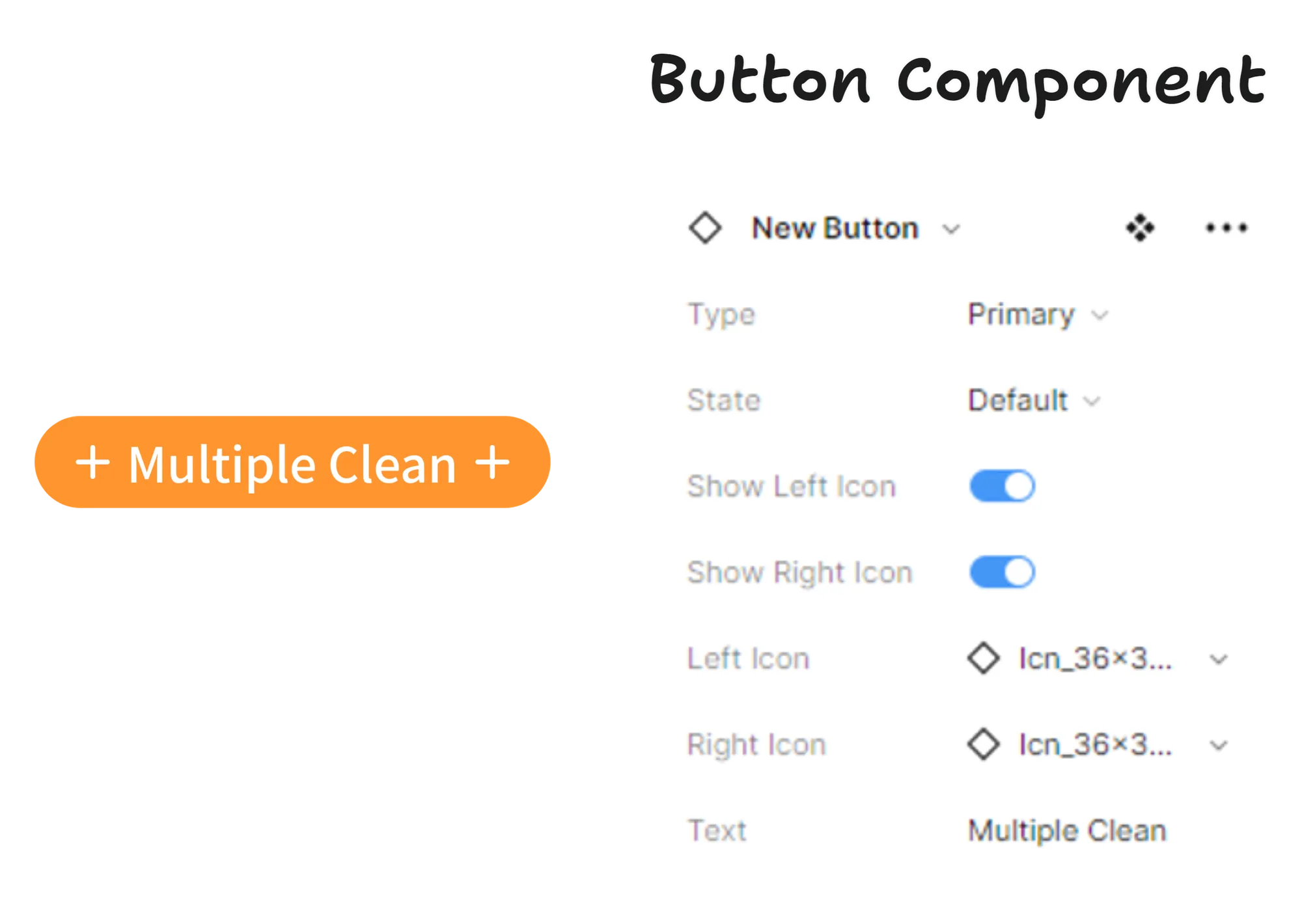
Leveraging Figma's variant and instance features, we further reduced complexities. For instance, the drop-down menus to set different states and toggle icons on or off.
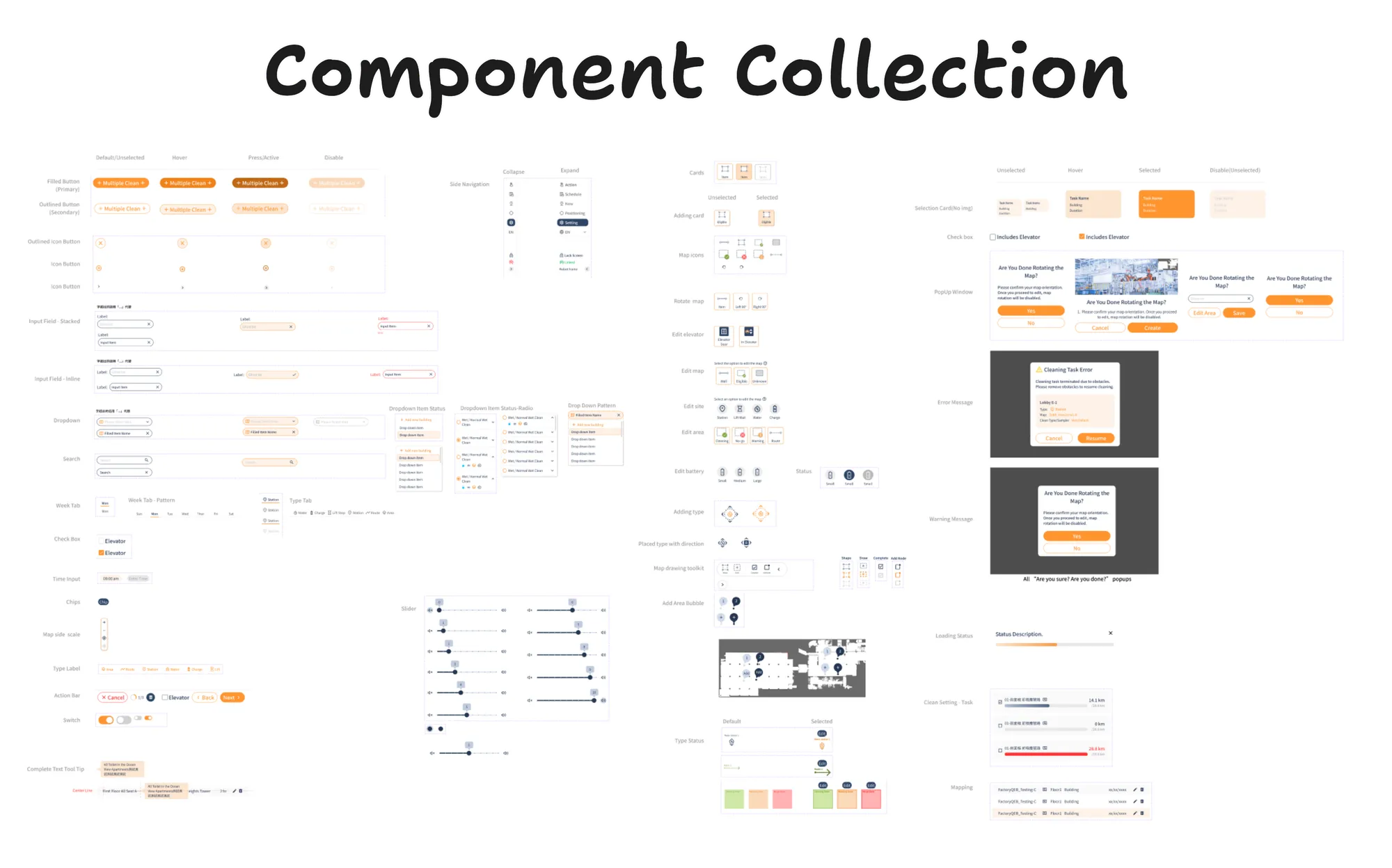
Comprehensive Component System
Our team embarked on a journey beyond mere component creation. We meticulously refined each UI element, enhancing consistency and efficiency in our engineering handoff. This strategic approach accelerated development, minimizing repetitive tasks and ensuring seamless usability.